 Baby World
How to use Baby World
Last updated:
A short guide for parents who have installed Baby World. Pick a topic, or read it from the top. The pictures show an invented baby, Sofia.
Nothing found. Try another word, or write to us.
Getting started
Baby World keeps your baby's day in one place: sleep, feeds, diapers, growth and more. There is no account to create. Everything you log stays on your phone.
Add your child
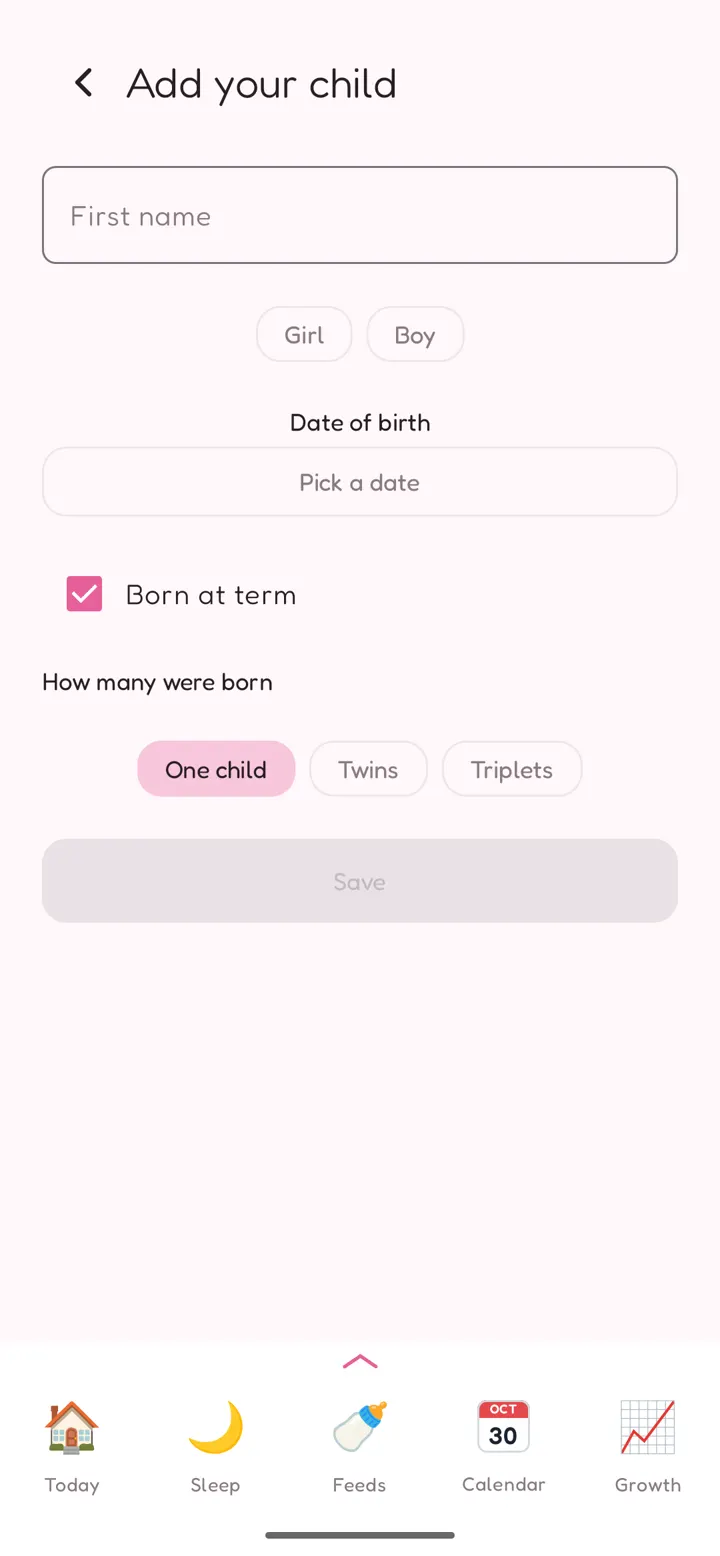
- On first launch, the app opens on Add your child.
- Type the first name, choose Girl or Boy and pick the Date of birth.
- If your baby was born early or late, untick Born at term and enter the Due date. The developmental leaps are counted from it.
- Under How many were born, choose One child, Twins or Triplets. Each child of a multiple birth gets their own name.
- Tap Save.
Moving from another phone? Tap 📂 Have a saved copy? Restore it on this first screen instead (see Backup).
Find your way around
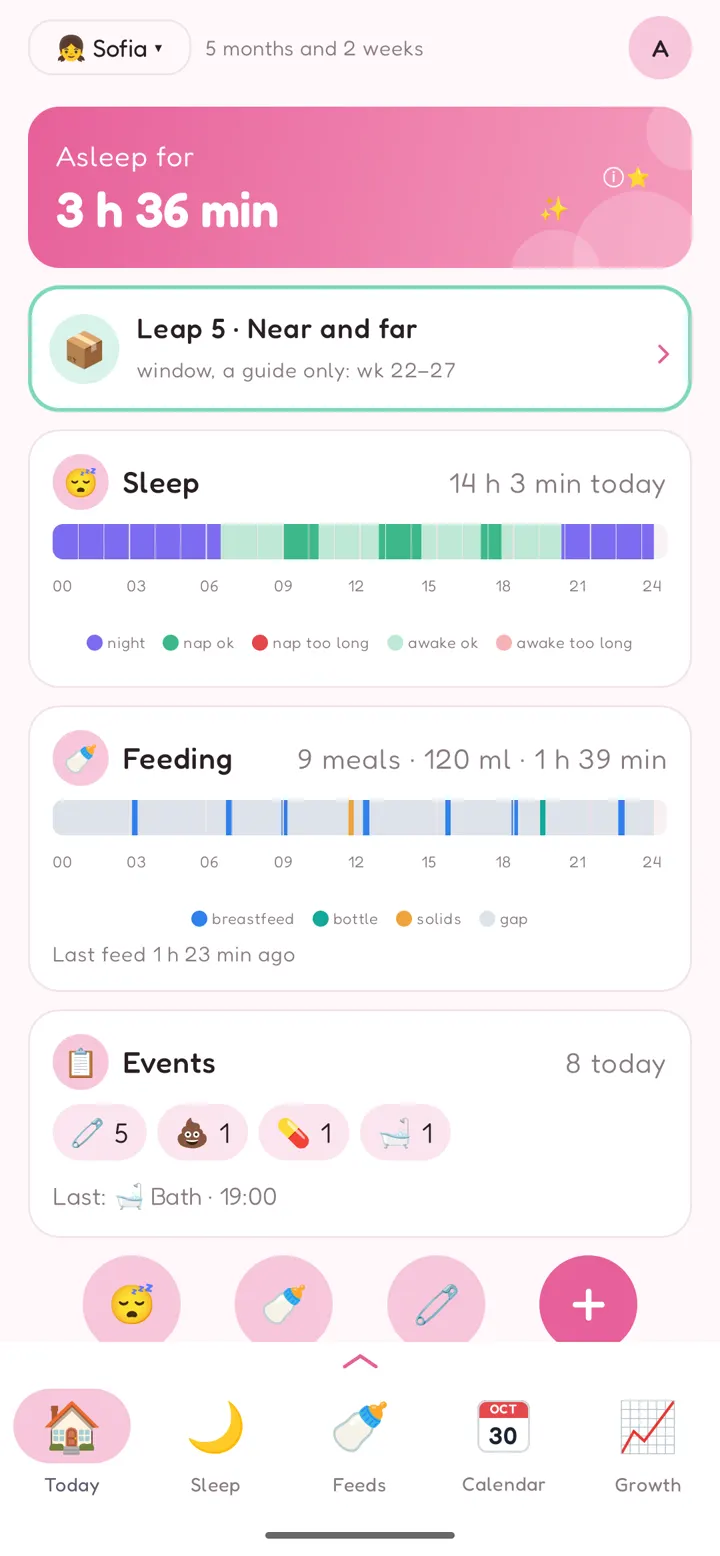
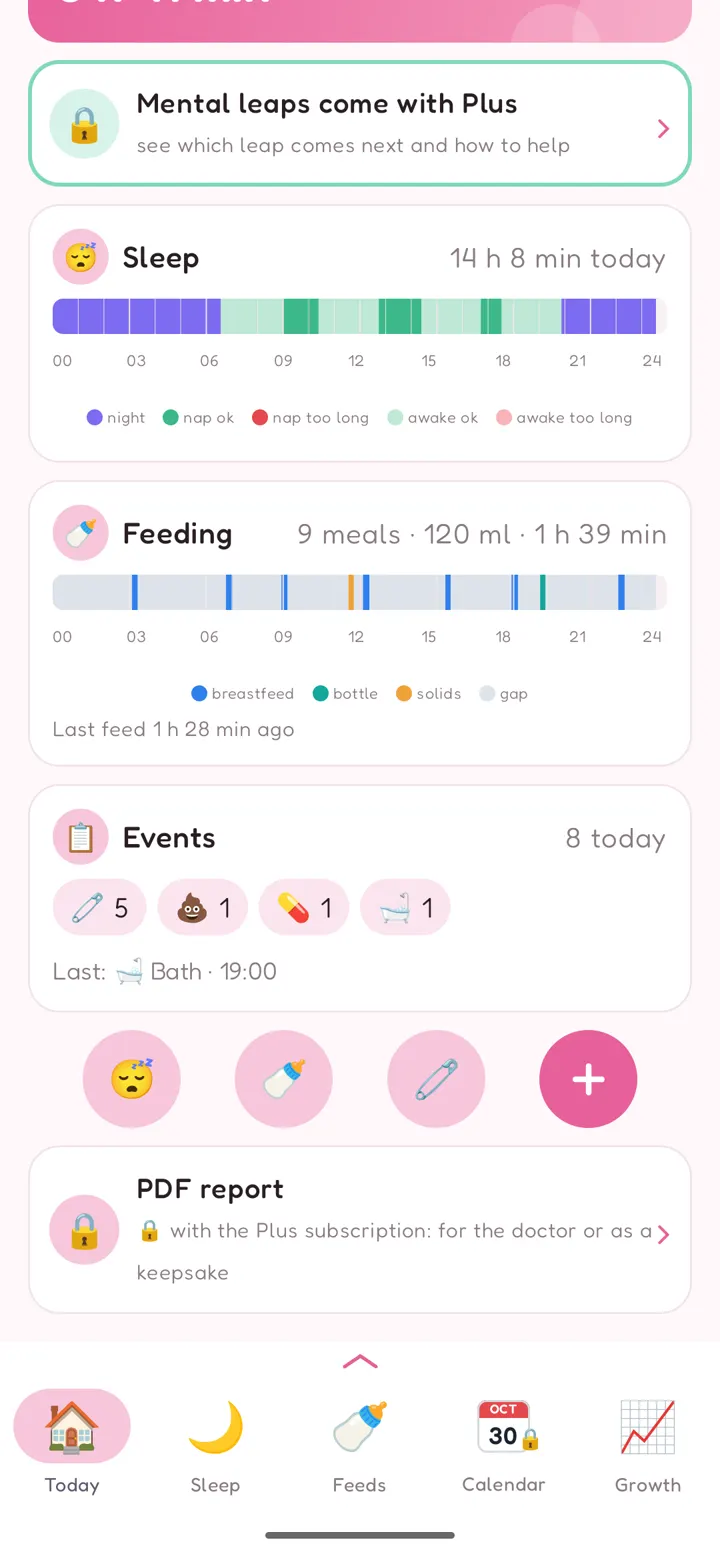
- Today is the home page. The big card at the top shows how long your baby has been asleep or awake, and when the next nap is likely.
- Below it are the day's Sleep and Feeding, each on a 24-hour bar, and Events: how many of each kind (🧷 5 · 💩 1 …) and the last one with its time.
- The round buttons at the bottom log a sleep 😴, a feed 🍼 or a diaper 🧷 in one tap; + opens every kind of event.
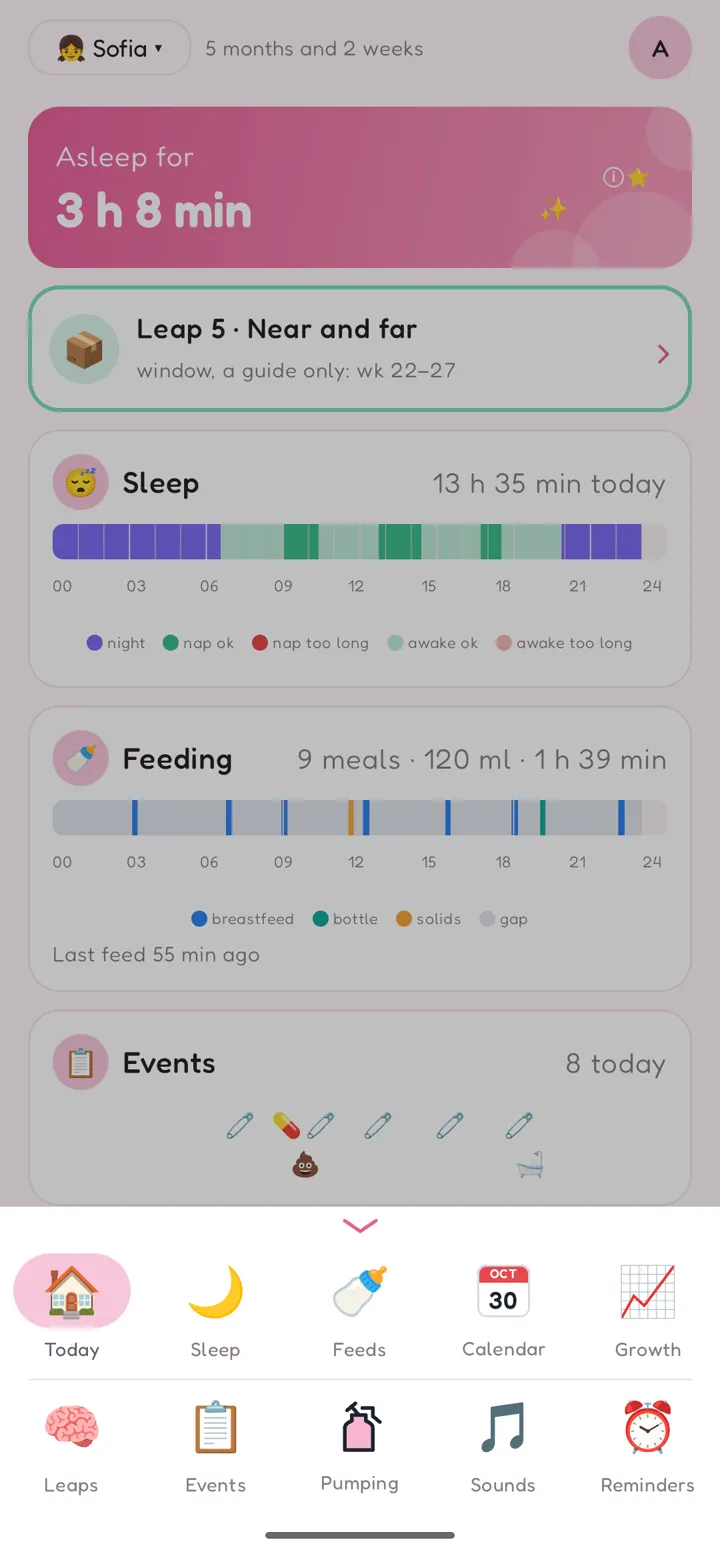
- The bar at the bottom always shows Today, Sleep, Feeds, Calendar and Growth.
- Swipe it up, or tap the small arrow above it, to open the full menu. The second row has Leaps, Events, Pumping, Sounds and Reminders.
- The child's name at the top (Sofia ▾ in the pictures) switches between your children.
- The round picture at the top right opens Settings.
Sleep
Log a sleep
- Live, as it happens: tap 😴 on Today, then Fell asleep when the baby falls asleep and Woke up when they wake.
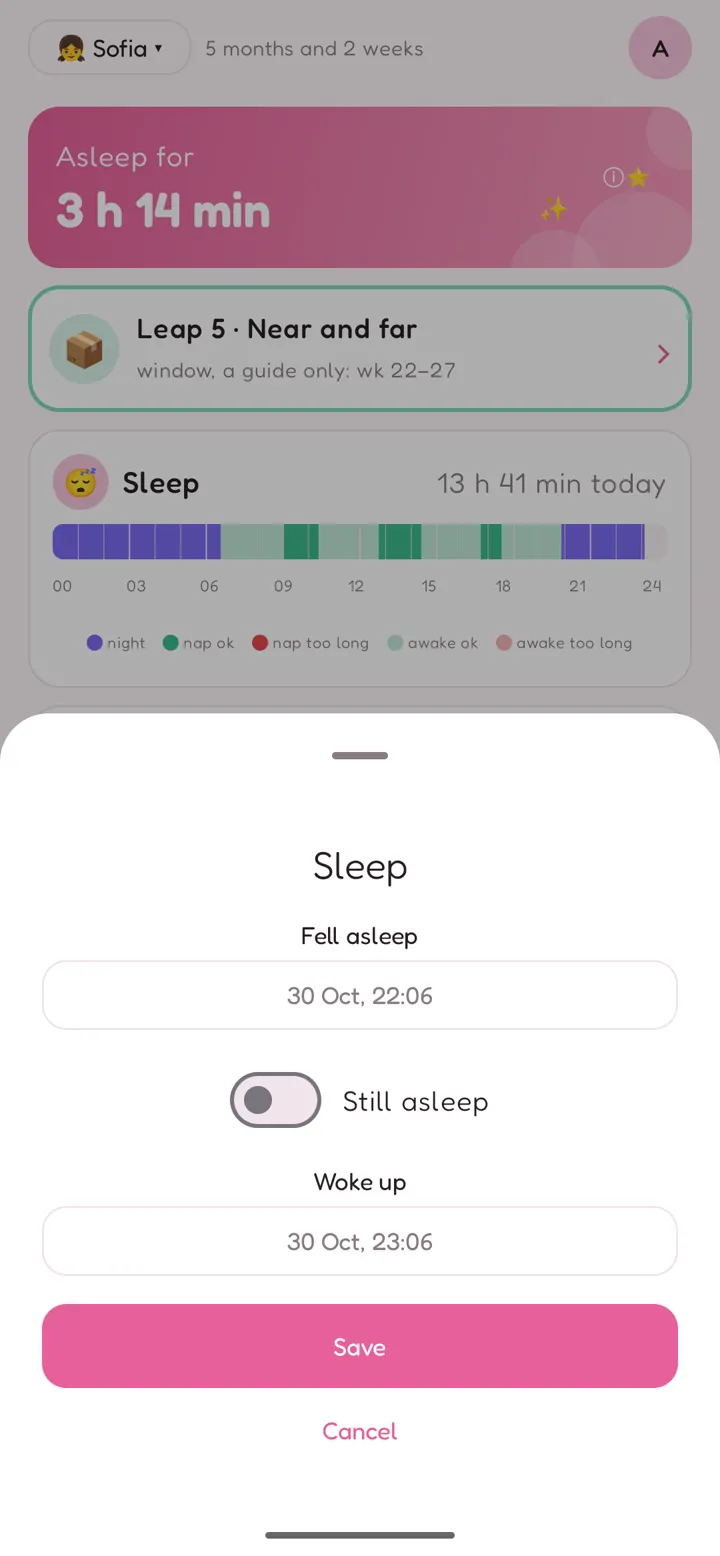
- After the fact: tap 😴 → Log manually and set Fell asleep and Woke up. Switch on Still asleep if the sleep hasn't ended yet.
A sleep under 5 minutes isn't saved, because it's usually a mistaken tap; the app asks first. You can change that limit in Limits and guides → Short entries.
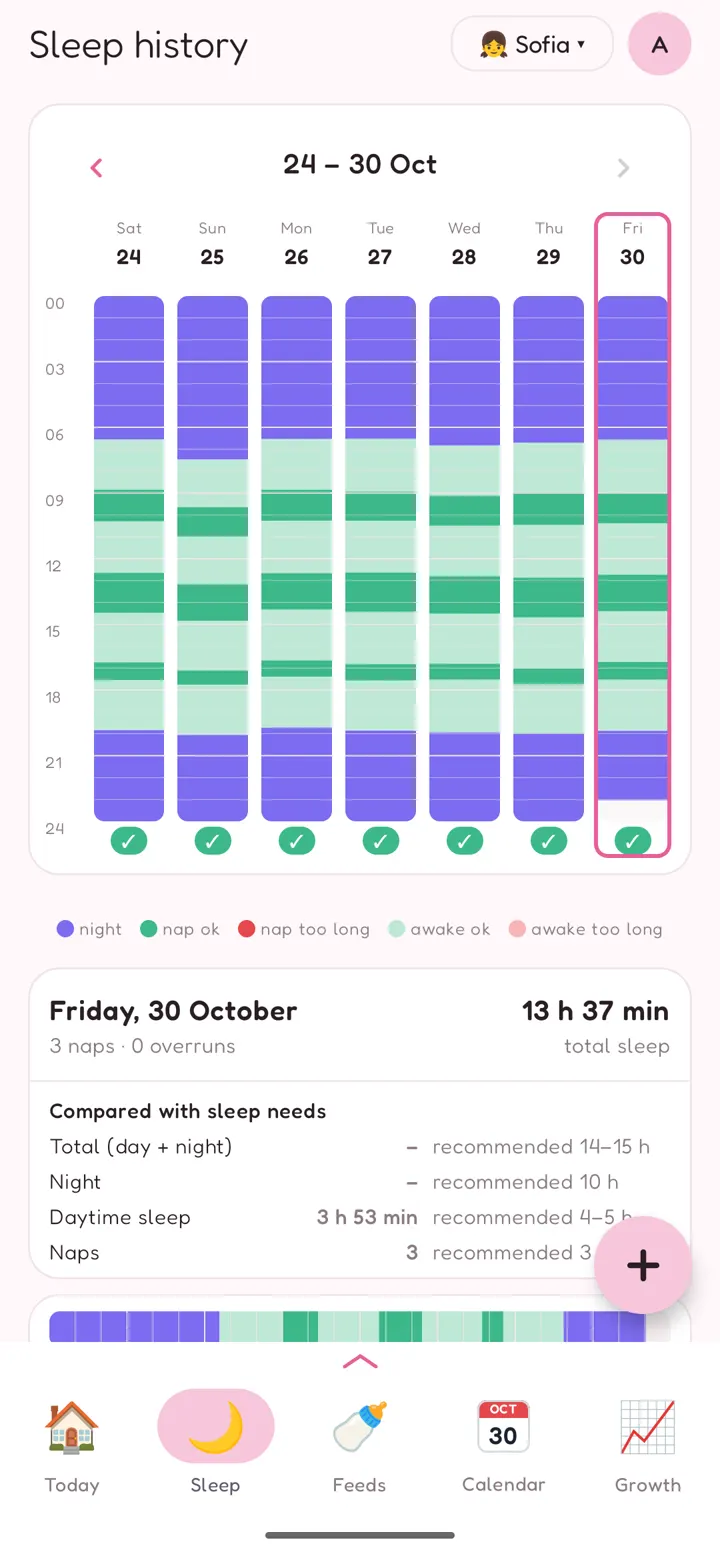
Sleep history (menu → Sleep)
Each day of the week is a column from midnight to midnight:
- purple: night;
- green: naps;
- light green: awake time;
- red: a nap that ran over the limit for the age; light red: awake longer than the limit.
A ✓ under a day means everything stayed within the guides; 1 ✗ counts what went over. Tap a day to see its totals next to the recommended sleep for the age, and every sleep of that day. Tap a sleep to change it.
The limits are a guide only, and you can change them in Settings → Limits and guides. Night sleep is never judged.
Tips
- Next nap: while your baby is awake, the top card on Today shows Next nap in and the nap window. Near the end of the day it shows Bedtime.
- Fewer naps: when your baby is old enough for fewer naps (we suggest 2 naps from 8 months and 1 nap from 15 months), the app asks before changing anything. You can also set the number of naps in Settings → Children → the child.
Feeding
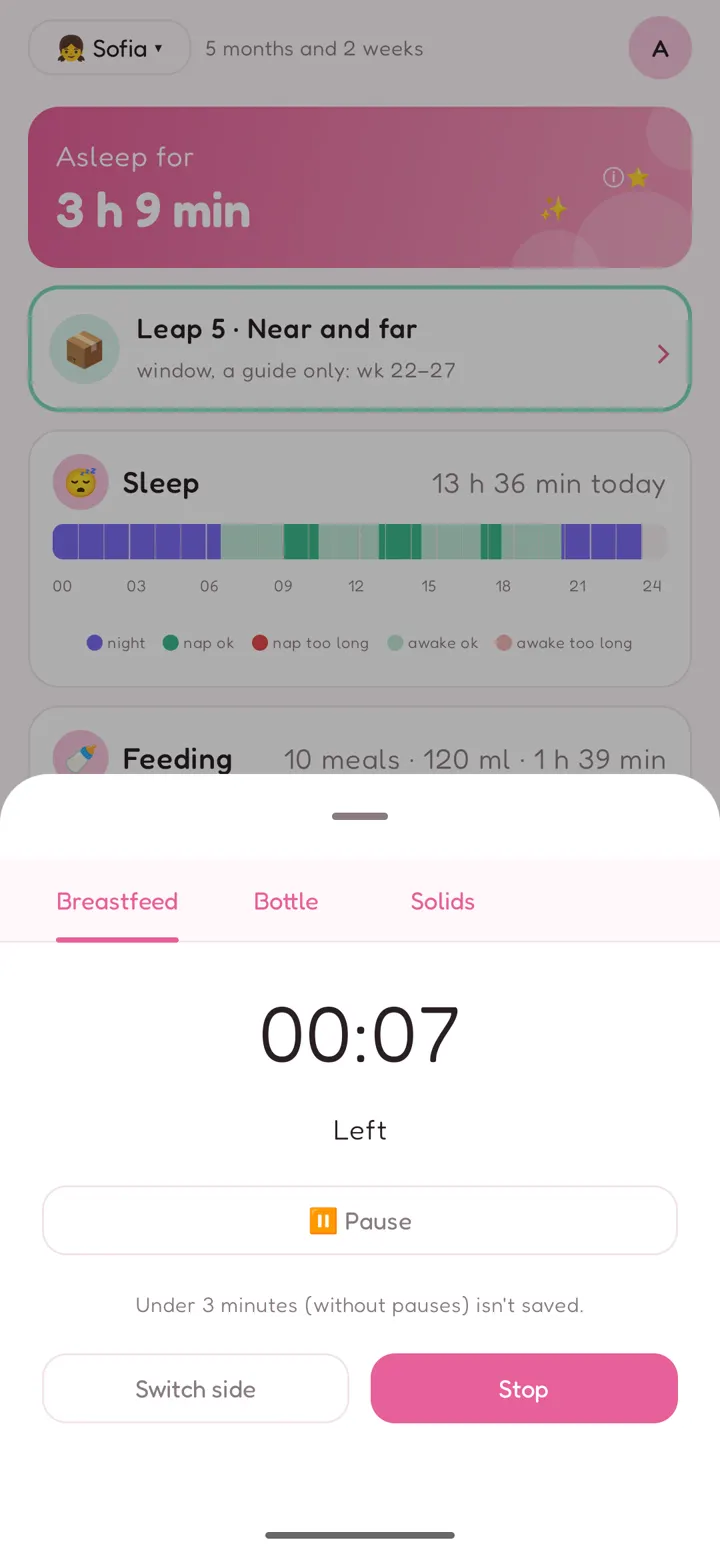
Tap 🍼 on Today. There are three tabs.
Breastfeed
- Tap Left or Right. The timer starts, and Last time: reminds you which side you used last.
- Use Pause for a break, Switch side to change breasts, and Stop when you're done.
A breastfeed under 3 minutes (without pauses) isn't saved; the app asks first.
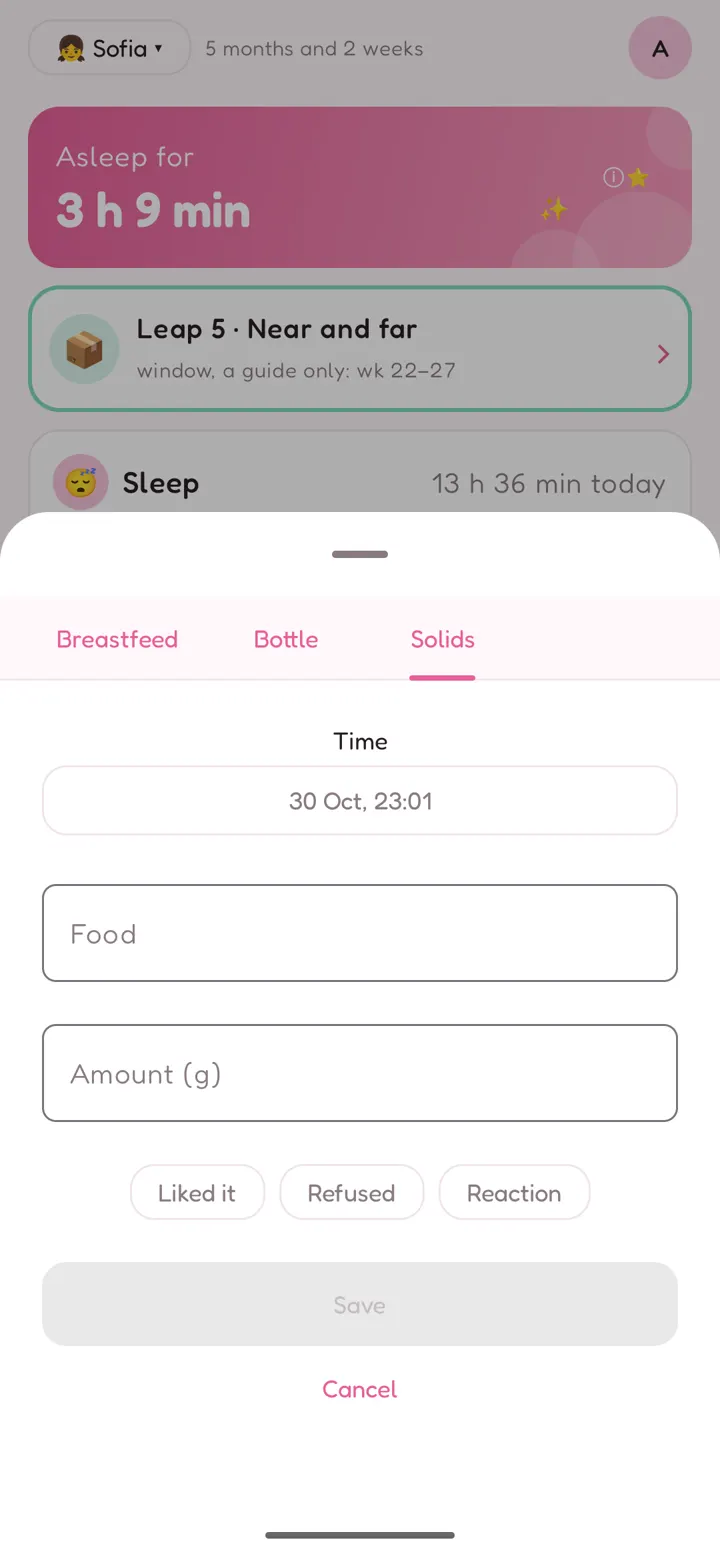
Bottle: the time, the Amount (ml), and whether it was Breast milk or Formula.
Solids: the time, the Food, the Amount (g), and how it went: Liked it, Refused or Reaction.
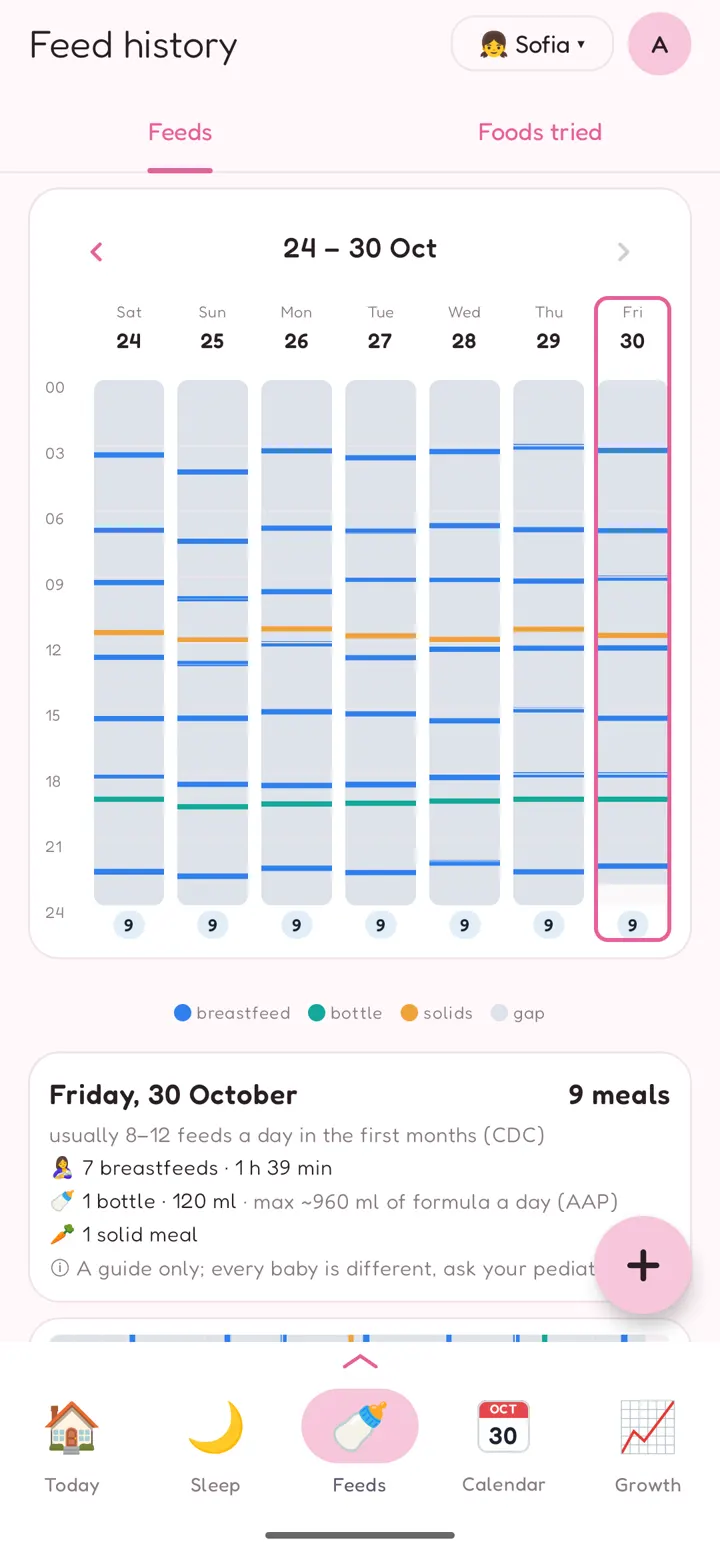
Feed history (menu → Feeds)
- Every feed of the week sits on a timeline, with its type shown in its colour:
- blue: breastfeed;
- green: bottle;
- orange: solids.
- Tap a day for its totals: number of feeds, breastfeeding time, bottle ml and solid meals. Each is shown next to the usual ranges for the age (CDC, AAP and WHO guides).
- Gaps between feeds are shown too; in the first weeks, a long gap shows in red.
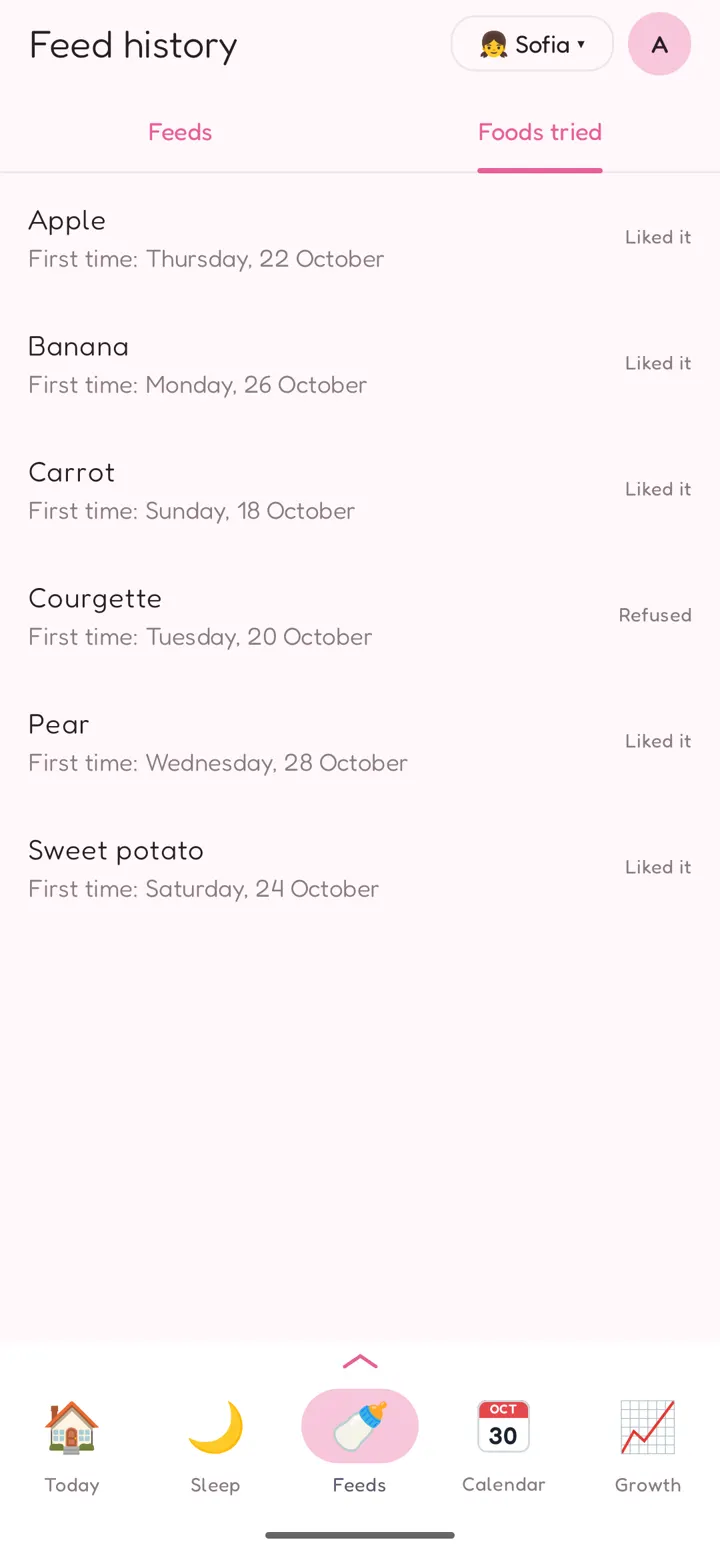
Foods tried (in Feeds, second tab) lists every food your baby has tried, with the date of the first time and whether they liked it.
Events: diapers, medicine and more
Log an event
- Tap 🧷 on Today to log a diaper. Choose Wet, Dirty or Both; the diaper is saved with that one tap.
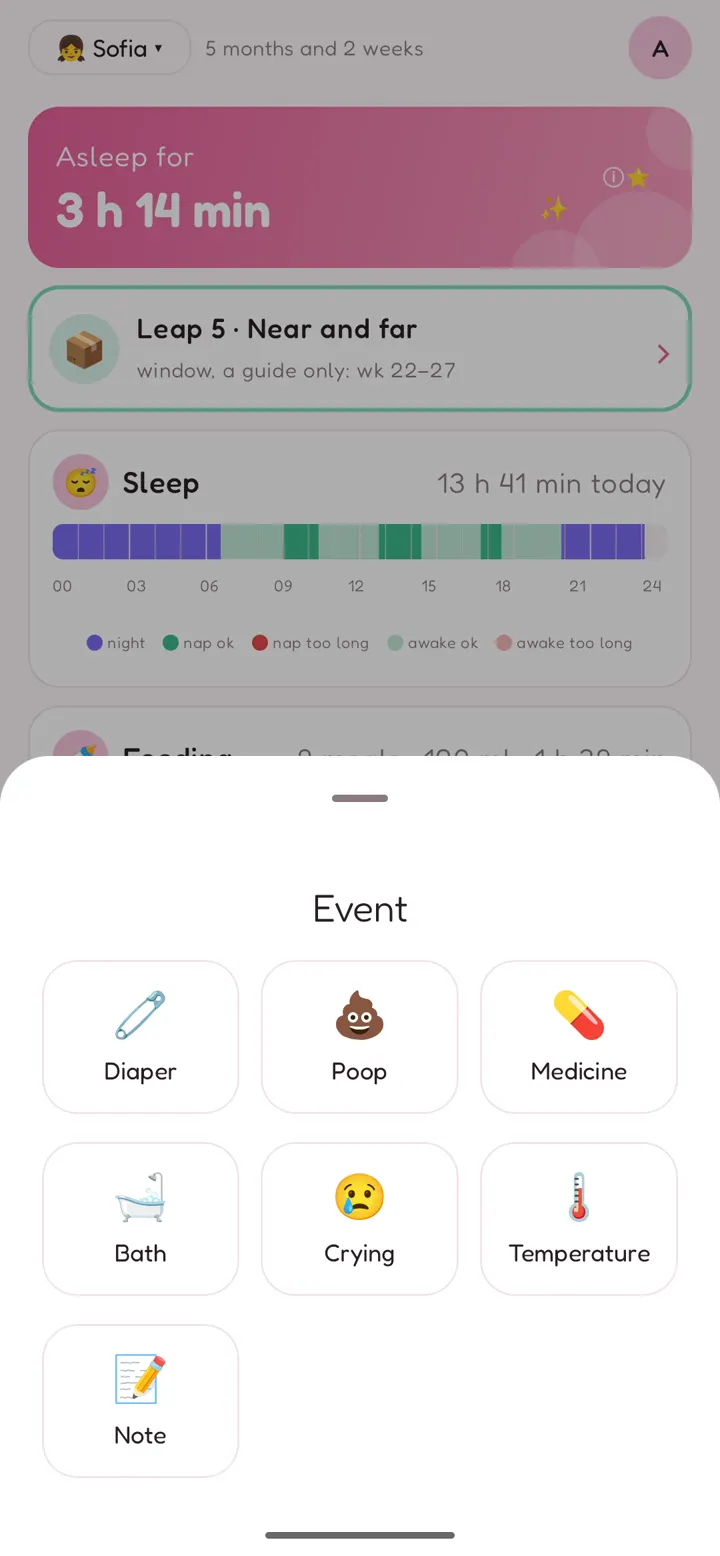
- Tap + for every kind of event:
| Event | What you note |
|---|---|
| Diaper | wet, dirty or both |
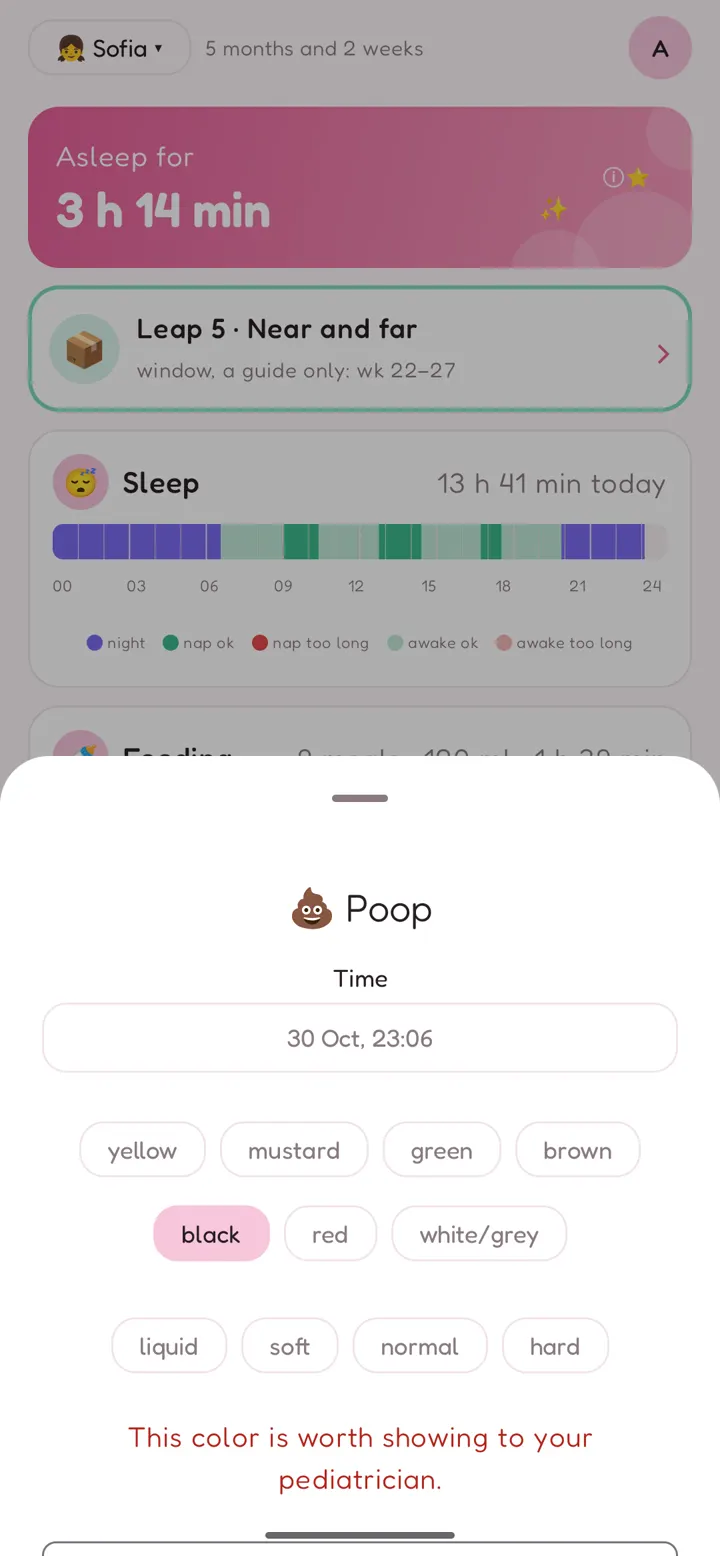
| Poop | the colour (yellow, mustard, green, brown, black, red, white/grey) and the texture (liquid, soft, normal, hard) |
| Medicine | the name and the dose |
| Bath | — |
| Crying | — |
| Temperature | in °C, between 34.0 and 43.0 |
| Note | anything you want to remember |
If you choose a stool colour that a doctor should see (black, red or white/grey), the app says so: This color is worth showing to your pediatrician.
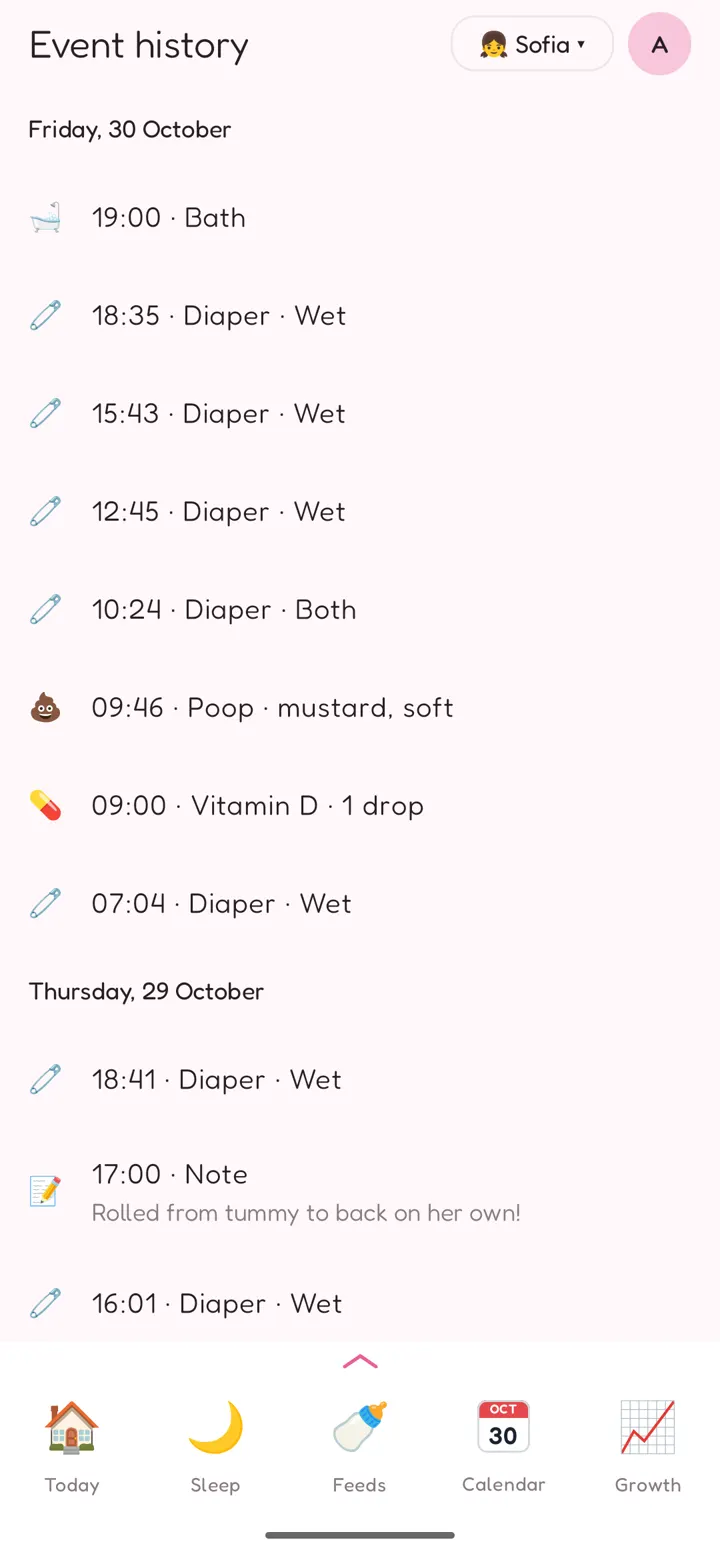
Event history (menu → Events) lists every event by day, newest first. Tap one to change it. Swipe it left and tap Delete to remove it; Undo brings it back.
Pumping
(menu → Pumping)
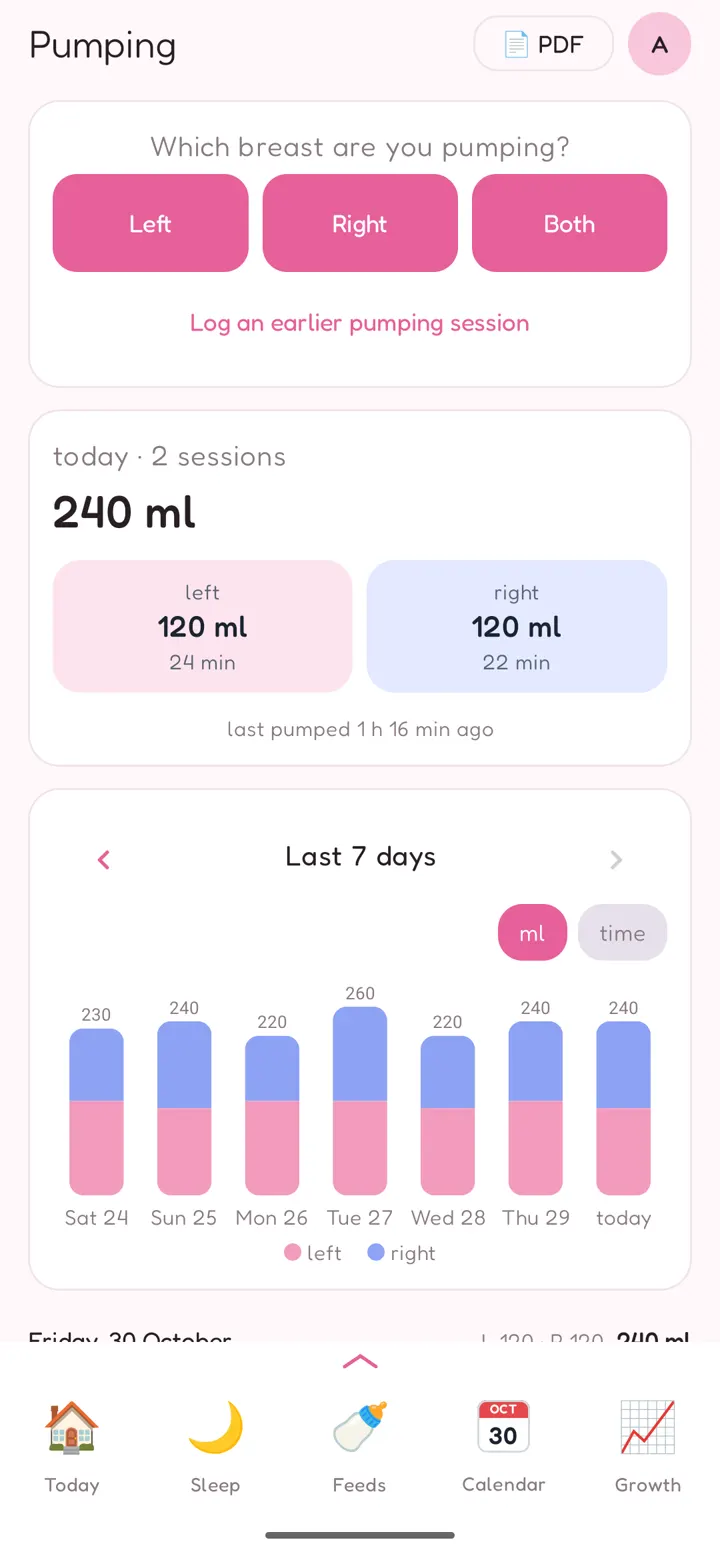
Pumping is about you, not the baby, so it has its own page and doesn't show in the baby's calendar.
- Under Which breast are you pumping?, tap Left, Right or Both. A timer runs for each side.
- When you finish, enter how many ml you got from each breast.
Forgot to start the timer? Use Log an earlier pumping session.
The page shows today's total (ml and time per side), when you last pumped, and a Last 7 days chart in ml or time. With Plus, the PDF button makes a separate pumping report.
Growth
(bottom bar → Growth)
Add a measurement
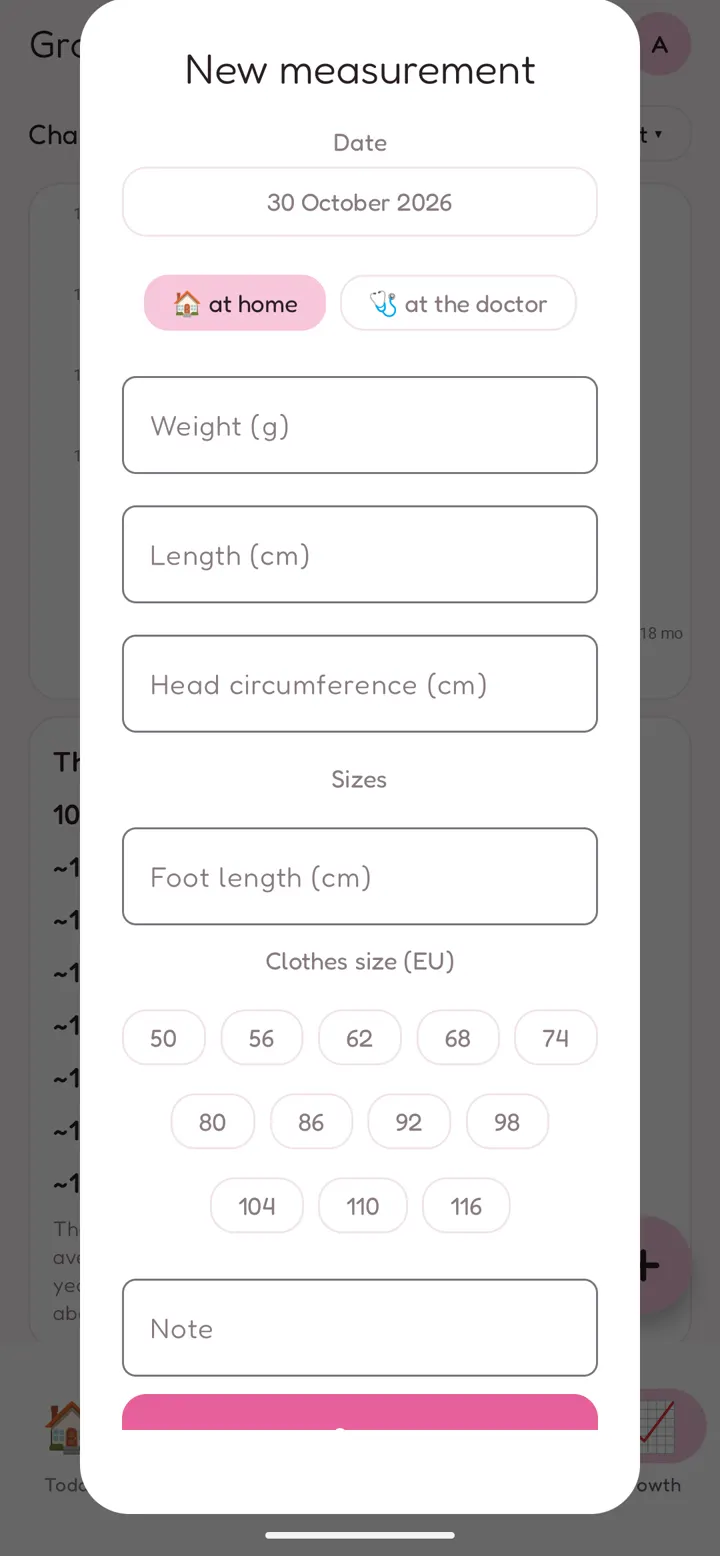
- Tap +.
- Enter whatever you measured:
- Weight (g);
- Length (cm);
- Head circumference (cm);
- under Sizes, the Foot length (cm) and the Clothes size (EU).
You don't need all of them.
- Mark whether it was at home or at the doctor, add a Note if you like, and tap Save.
The page
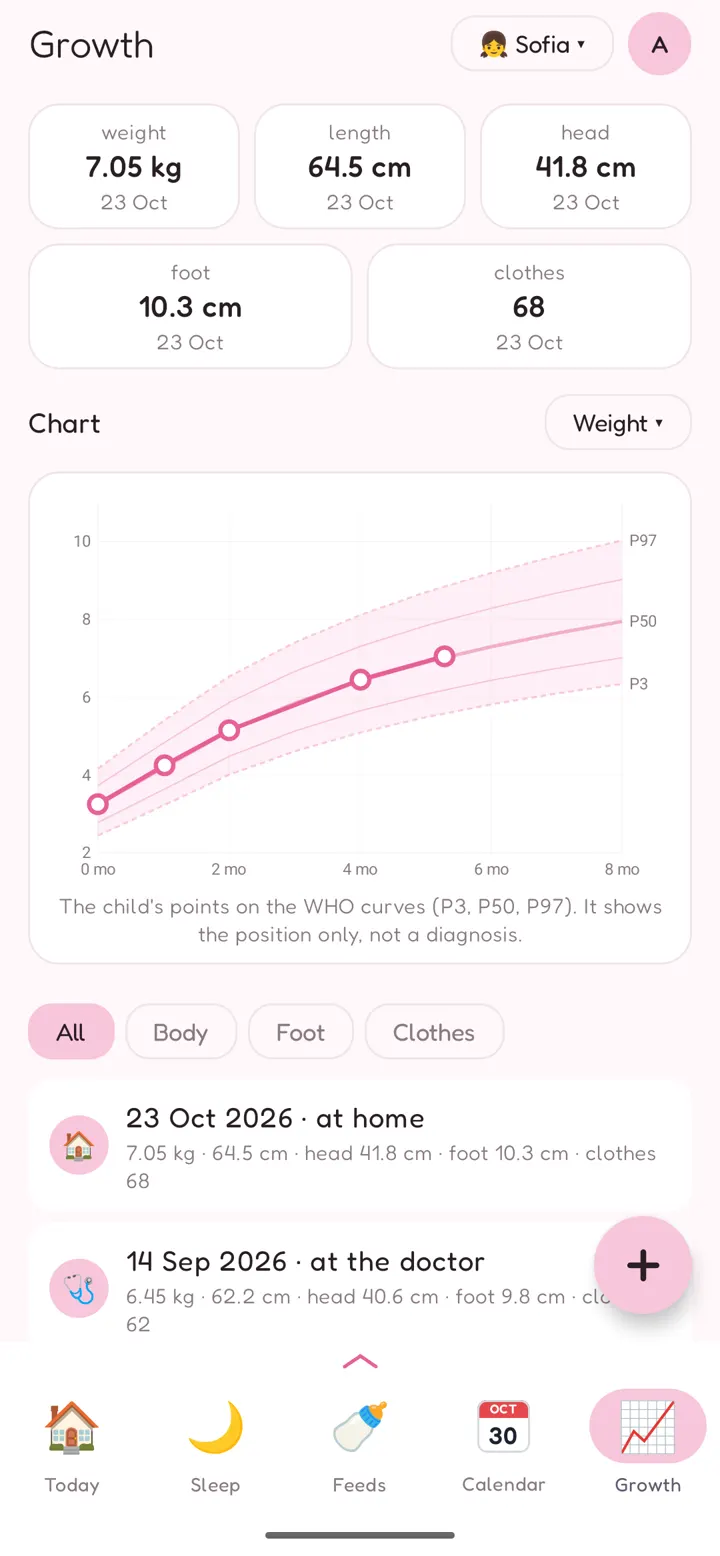
- At the top: the latest value of each measurement.
- Below: a Chart with your baby's points on the WHO growth curves (P3, P50, P97), for 0–24 months.
- Pick the chart with the button on the right: Weight, Length, Head or Weight / length.
- Clothes and Foot are in Sizes.
- At the bottom: every measurement. Filter it with All, Body, Foot or Clothes; it shows 10 at a time.
- Tap one to change it.
The chart shows your baby's position only, not a diagnosis. The health booklet from your doctor stays the official record. For premature babies, age is counted from the due date.
Sizes: clothes and foot
(Plus)
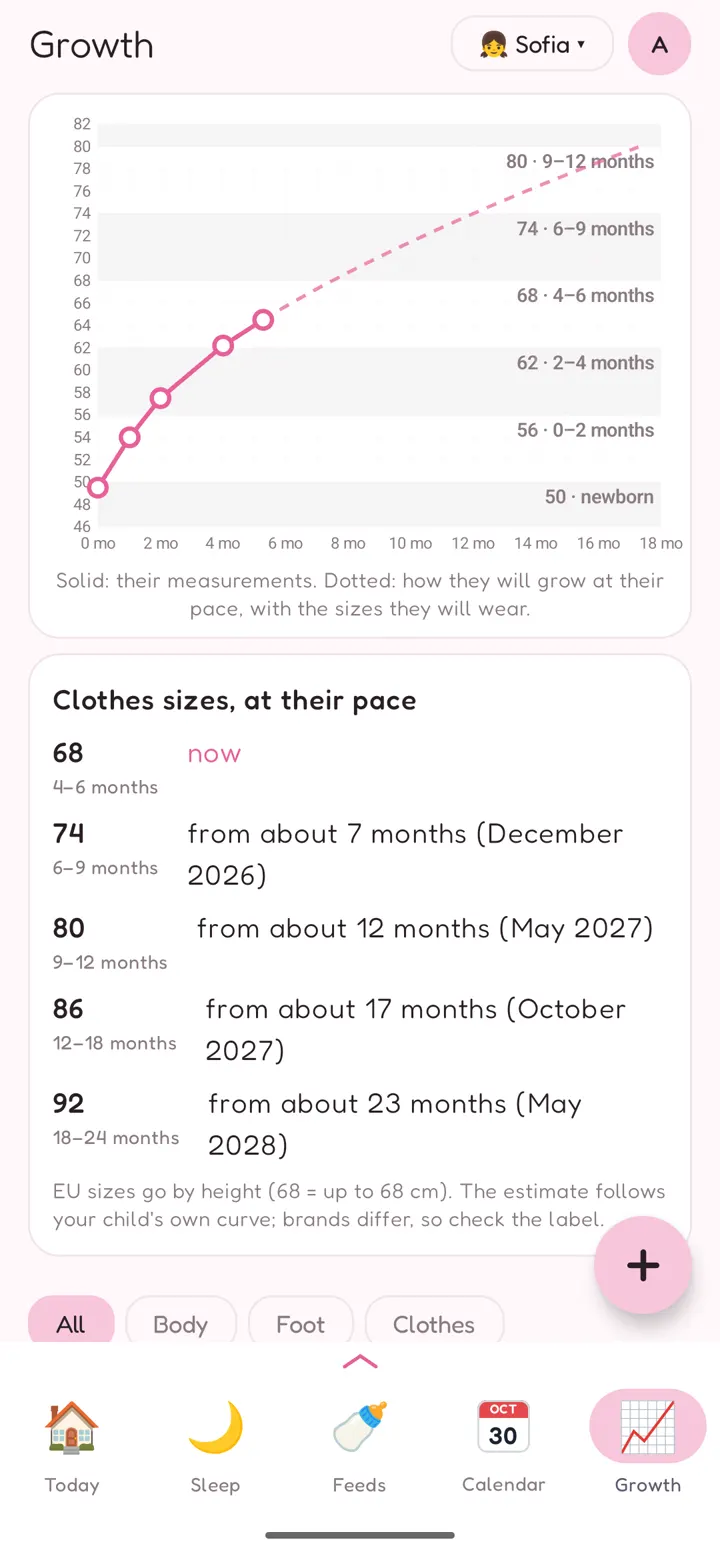
On Growth, open the chart button and choose Clothes or Foot.
Clothes shows which EU clothes size fits now and when your baby will move to the next ones, at their own pace.
- EU sizes go by height: 68 means up to 68 cm.
- The estimate follows your child's own growth curve. The age on each size is the usual one; brands differ, so check the label.
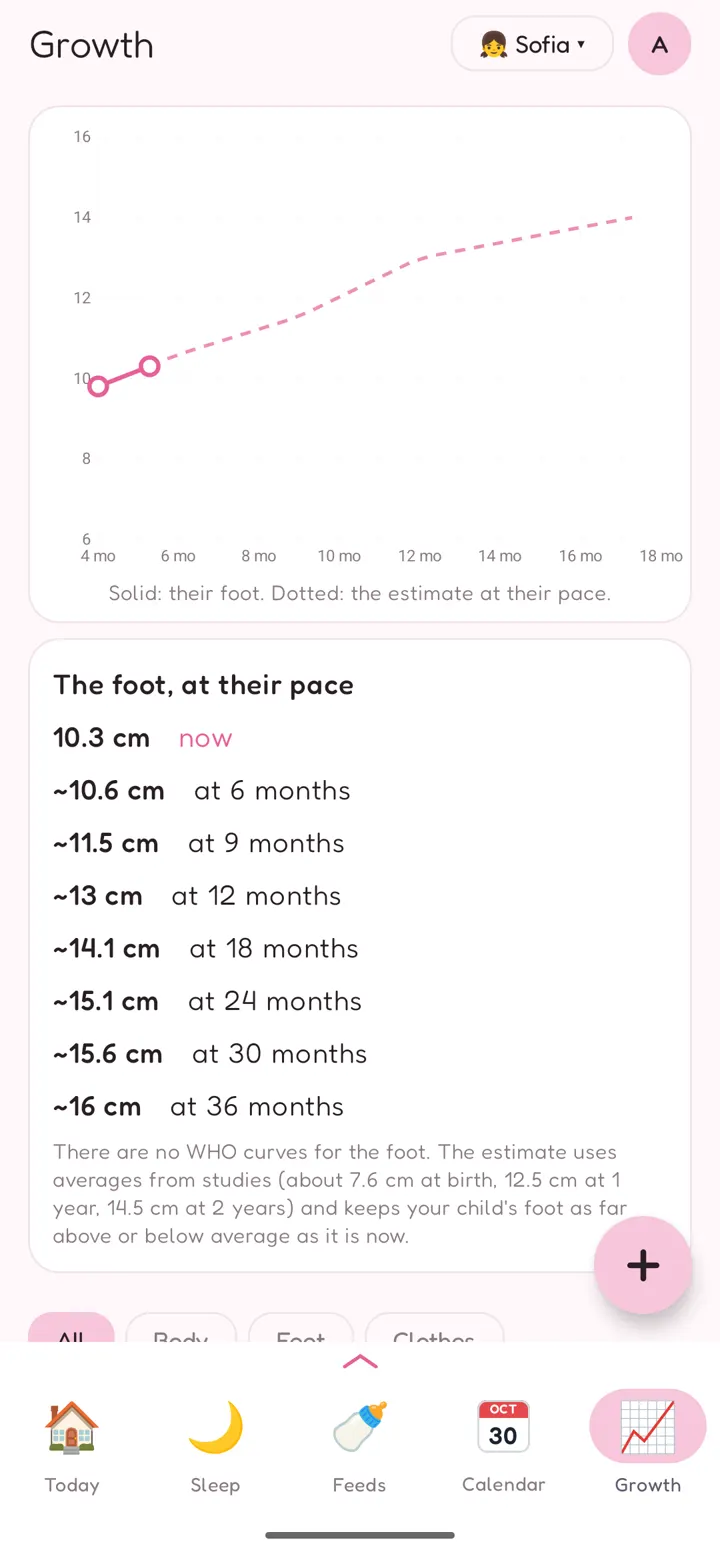
Foot shows the foot length in cm, measured heel to big toe, and an estimate of how it will grow.
- There are no WHO curves for feet. The estimate uses averages from studies (about 7.6 cm at birth, 12.5 cm at 1 year, 14.5 cm at 2 years).
- It keeps your child as far above or below average as they are now.
- Shoe sizes differ between brands, so the app works in centimetres.
Leaps
(Plus · menu → Leaps)
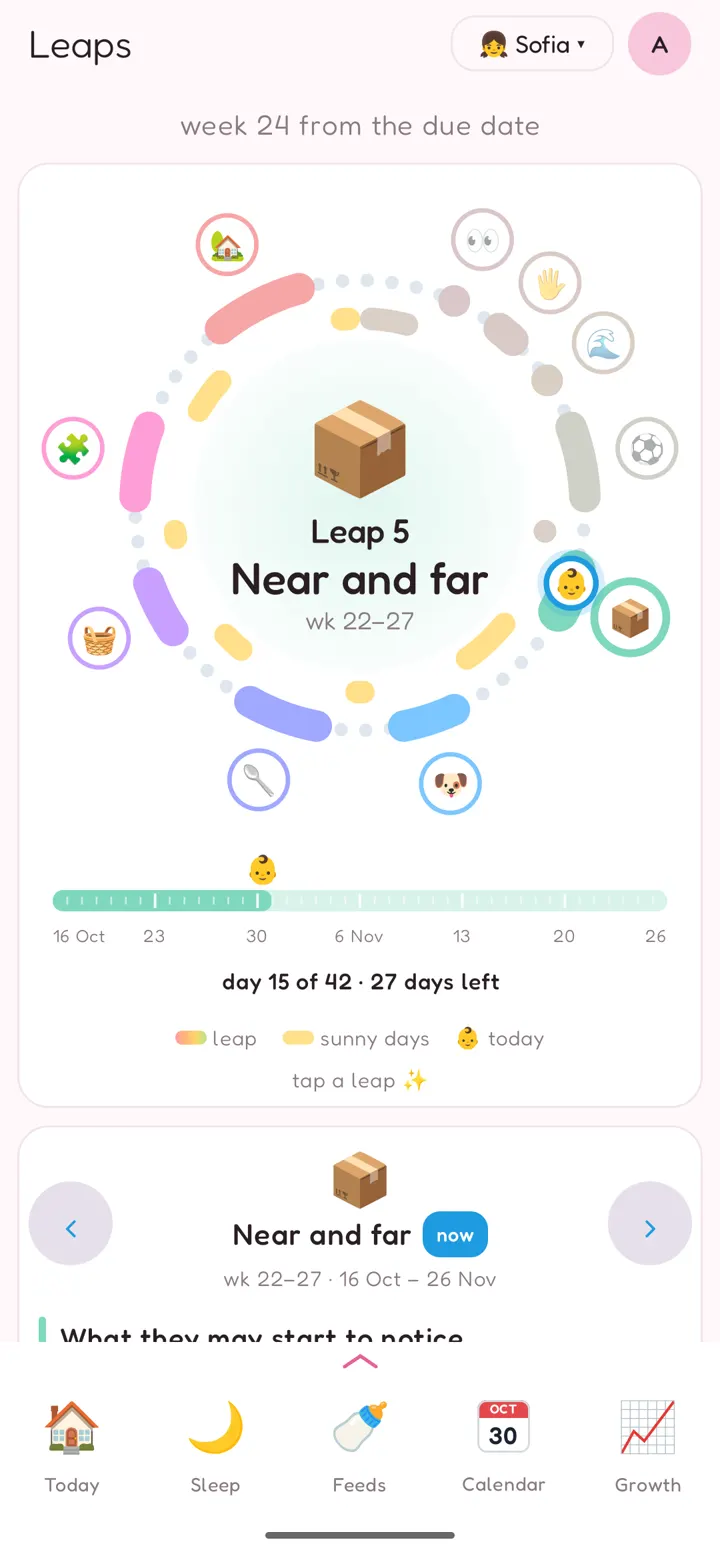
Many parents notice fussier periods followed by new skills. Baby World shows 10 developmental leaps, counted in weeks from the due date, so you know what may be coming.
- The circle: the leaps around the year, with the current one in the middle and your baby 👶 on today's date.
- Below it, the bar shows the current leap's days ("day 15 of 42 · 27 days left").
- Tap any leap to read about it.
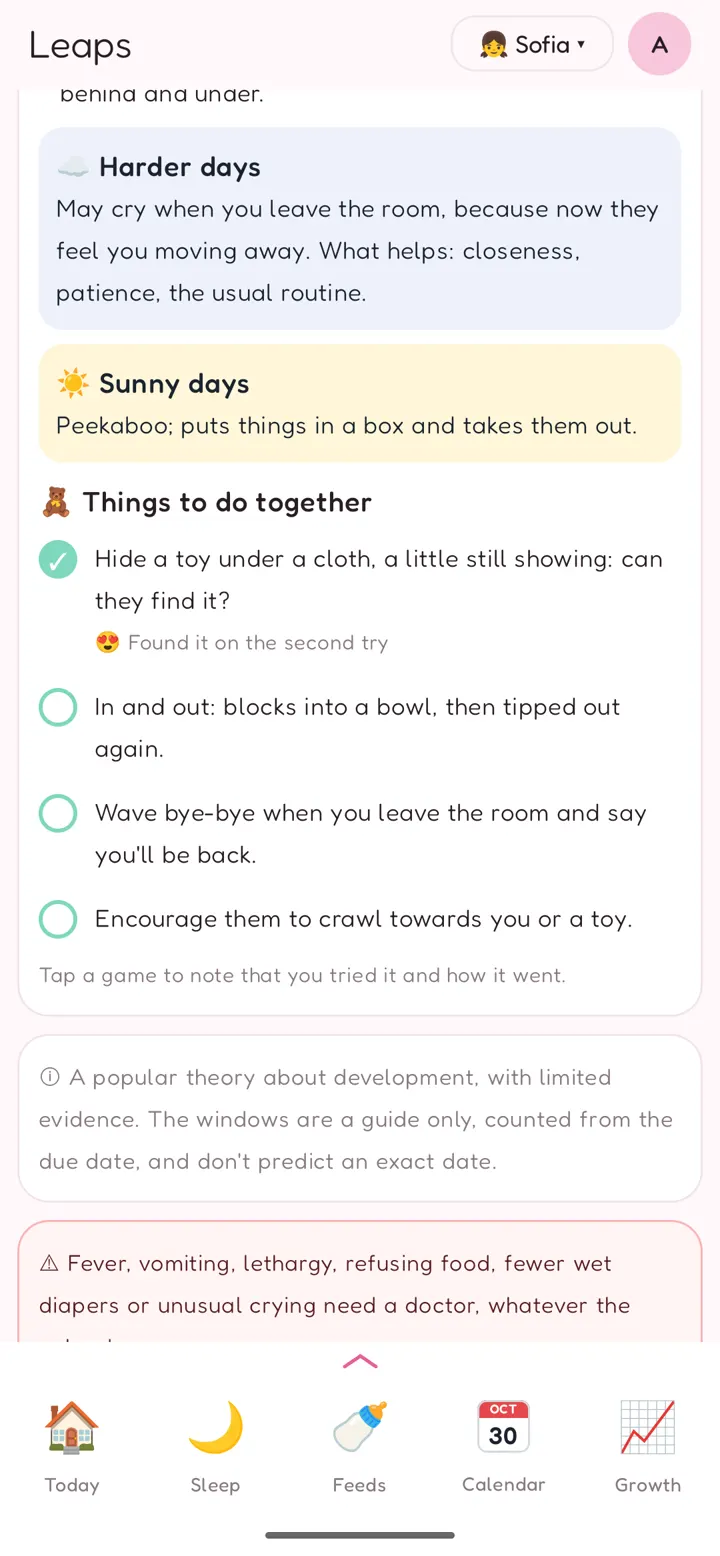
- For each leap:
- What they may start to notice;
- ☁️ Harder days and what helps;
- ☀️ Sunny days;
- 🧸 Things to do together: four play ideas.
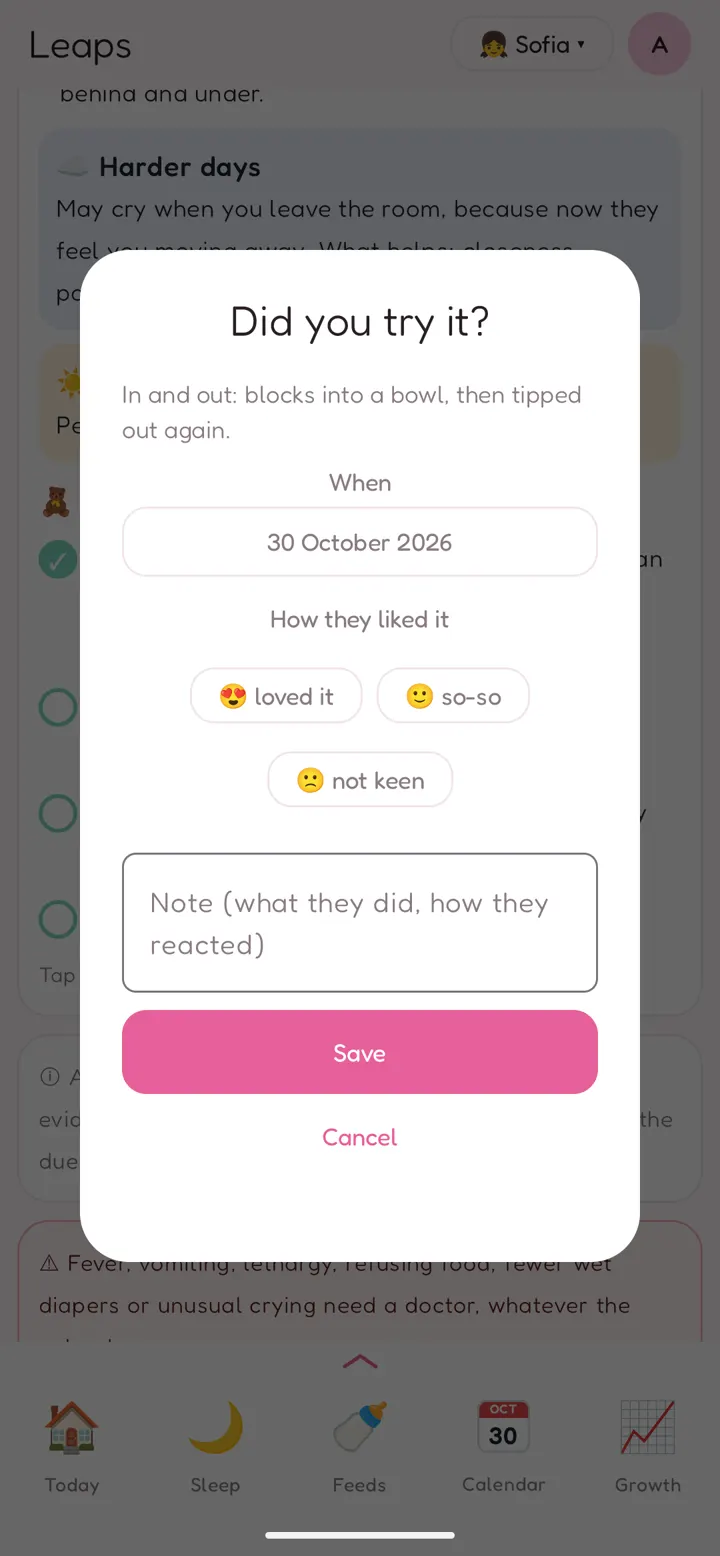
- Log a game: tap a play idea to note that you tried it. Fill in When and How they liked it (loved it / so-so / not keen), plus a Note. Tried games get a ✓ and show in the Calendar and in the PDF report.
The leaps are a popular theory with limited evidence. The windows are a guide only and don't predict an exact date. Fever, vomiting, lethargy, refusing food, fewer wet diapers or unusual crying need a doctor, whatever the calendar says.
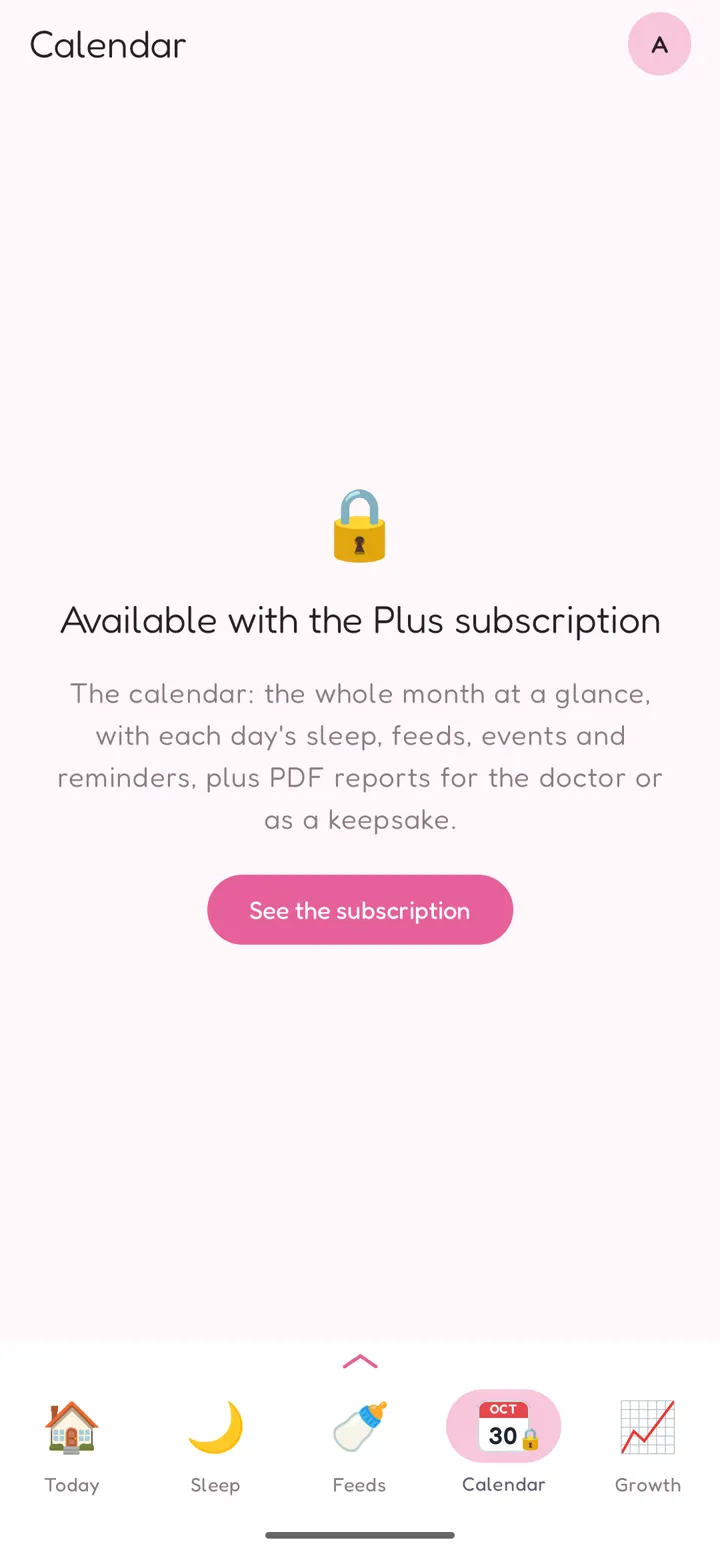
Calendar
(Plus · bottom bar → Calendar)
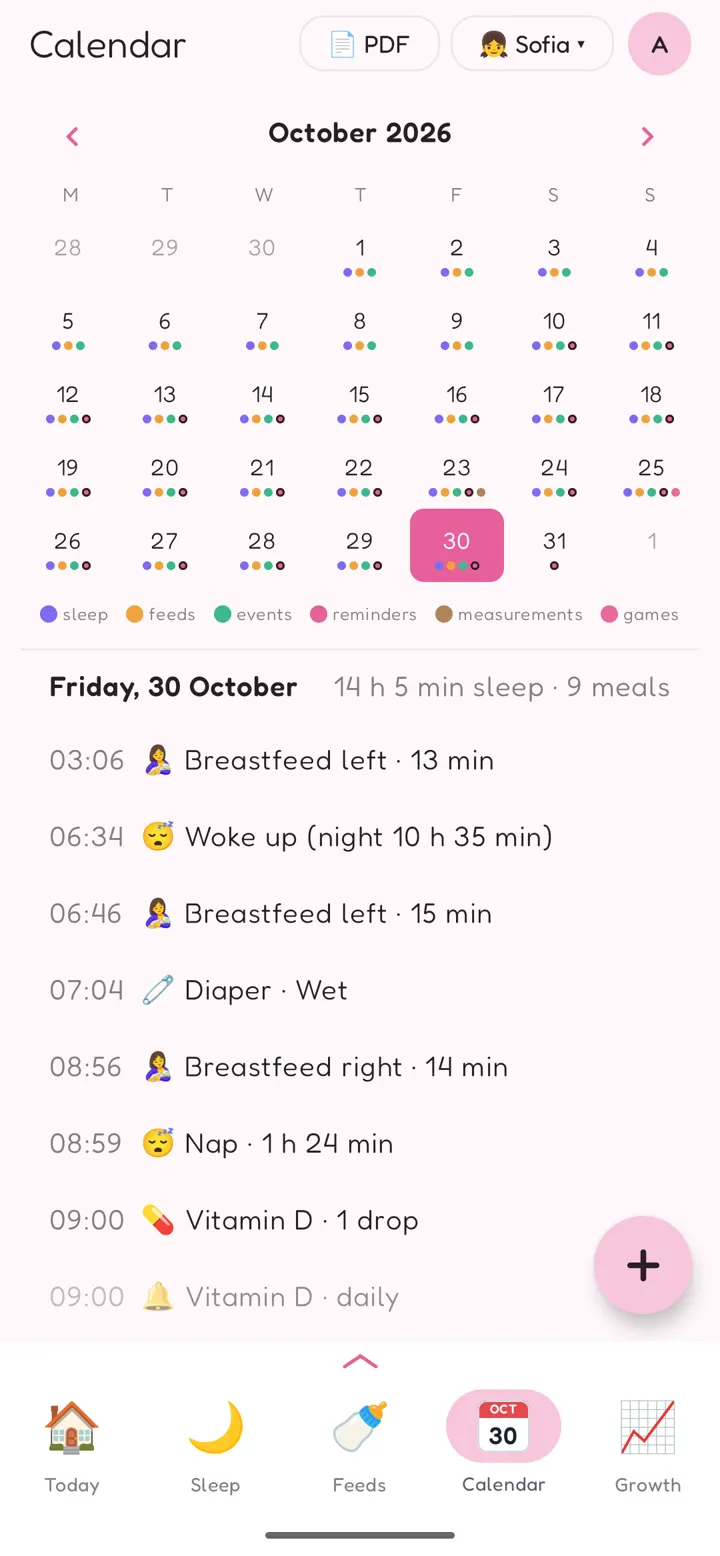
The whole month at a glance. Dots under each day show what was logged:
- sleep;
- feeds;
- events;
- reminders;
- measurements;
- games from the leaps.
Tap a day to see everything in it, hour by hour, with the day's sleep and feed totals.
- Tap an entry to change it, or swipe it left to delete it.
- + adds an event or a reminder on that day.
- The 📄 PDF button at the top makes a report (see PDF reports).
Pumping isn't in the calendar; it has its own page.
PDF reports
(Plus)
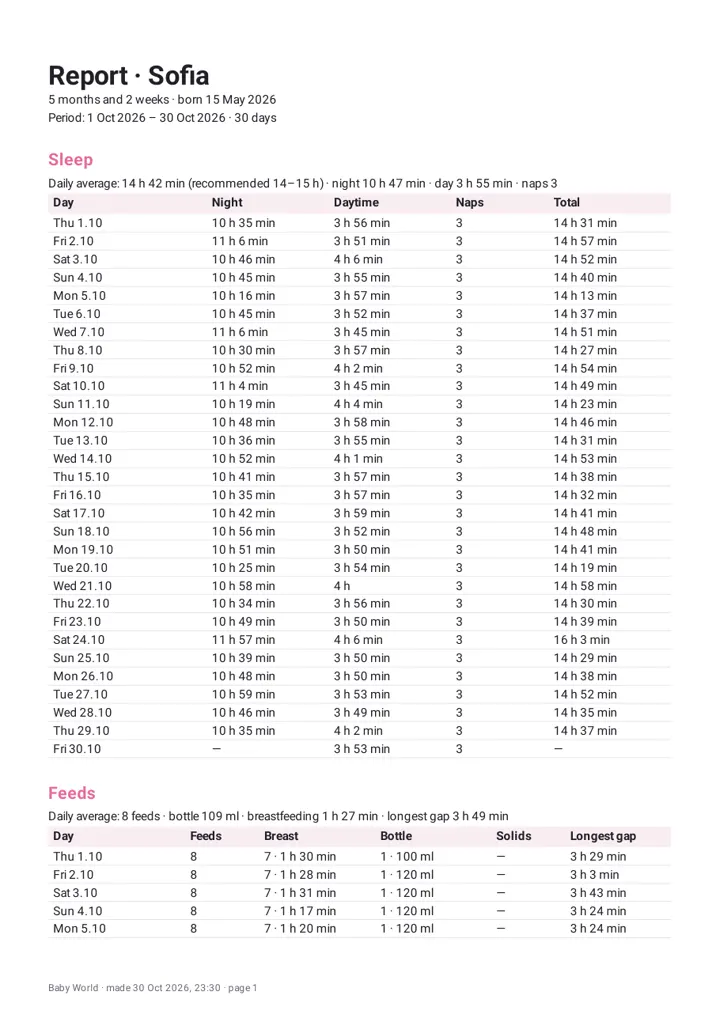
Make a PDF of a period, to show your pediatrician or to keep. Open it from any of these places:
- Calendar → 📄 PDF;
- Settings → PDF report;
- for pumping, Pumping → PDF.
Make a report
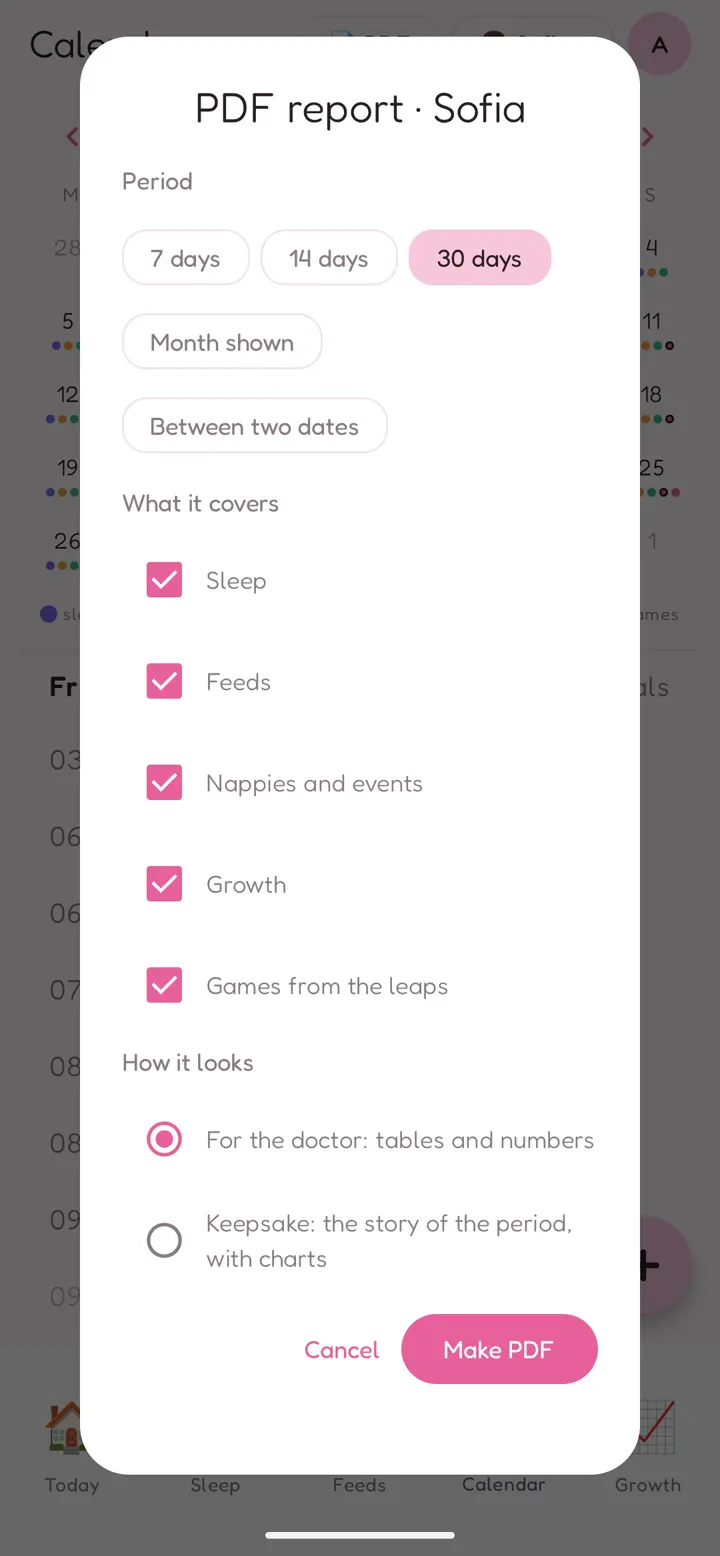
- Choose the Period: 7 days, 14 days, 30 days, Month shown or Between two dates.
- Under What it covers, tick the sections you want: Sleep, Feeds, Nappies and events, Growth, Games from the leaps.
- Under How it looks, choose a style:
- For the doctor: tables and numbers: a day-by-day table for each section, with averages, and stool colours and textures.
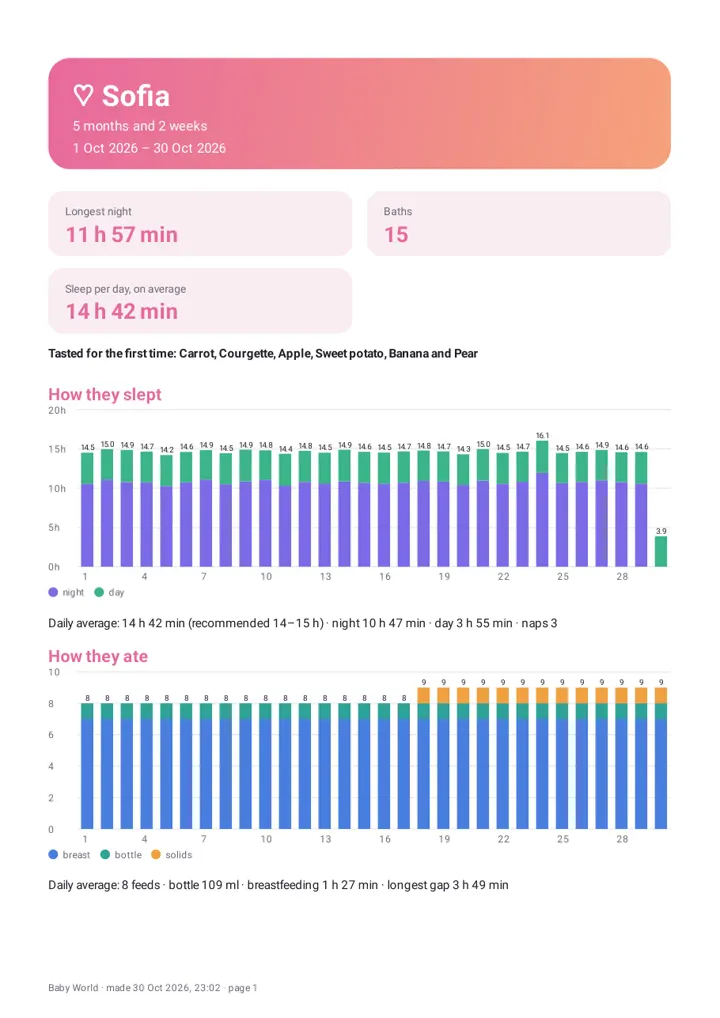
- Keepsake: the story of the period, with charts: highlights such as the longest night, the first foods and the baths, with charts and the numbers.
- Tap Make PDF. Android's share screen opens, so you choose where it goes: save it to your files or Drive, or send it by email or a messaging app.
The PDF is only made when you ask for it, and only goes where you send it.
Reminders
(menu → Reminders)
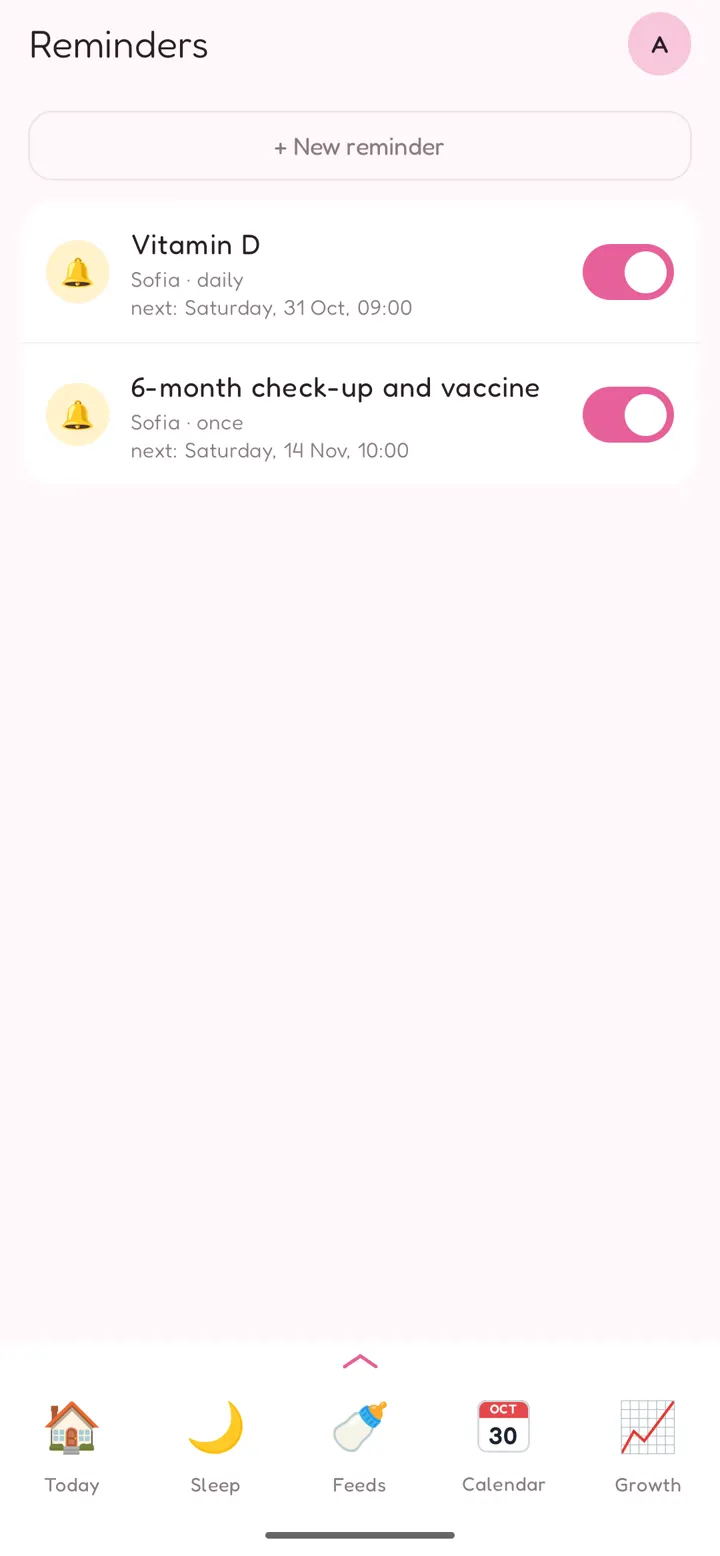
Your own reminders, for example vitamin D every morning or the next check-up.
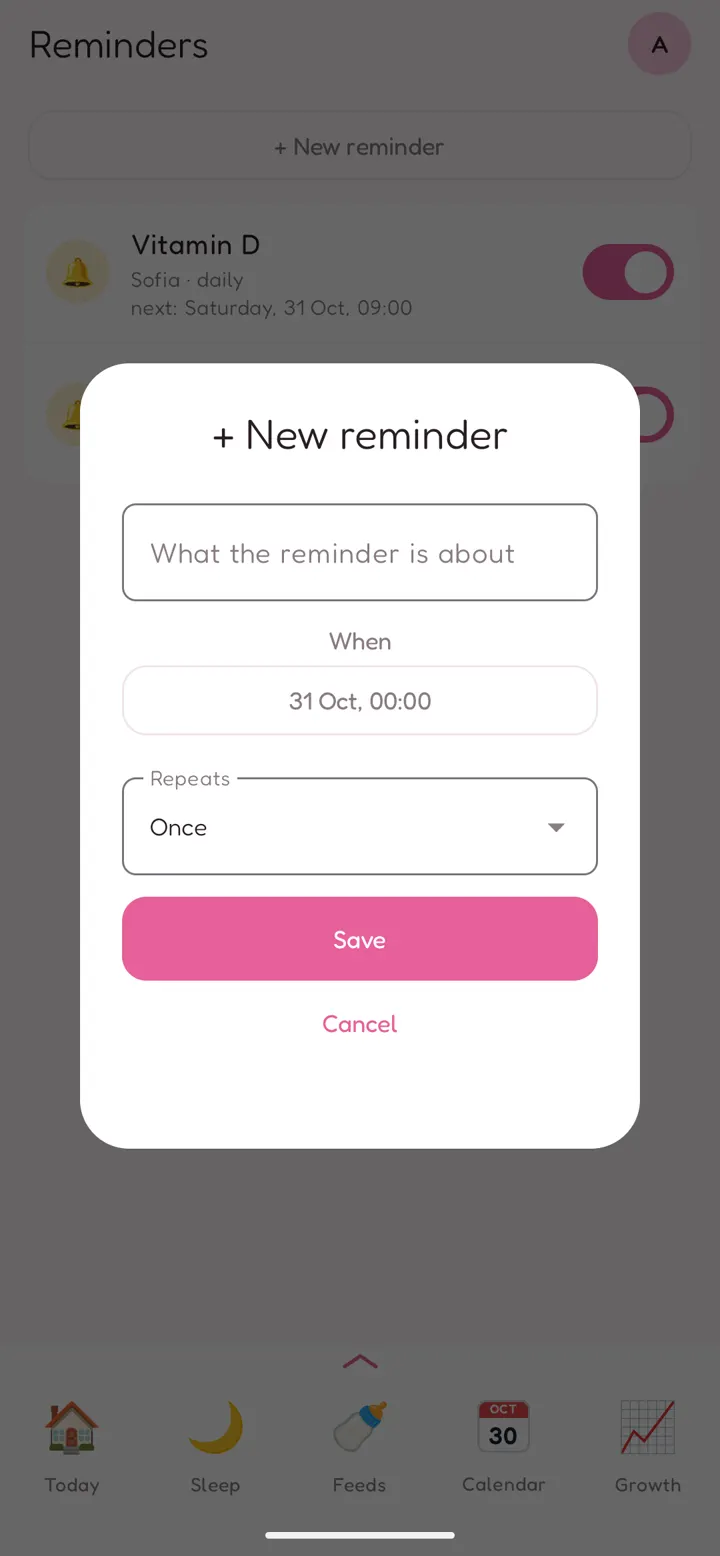
- Tap + New reminder.
- Write What the reminder is about and choose When.
- Under Repeats, choose Once, Daily, Every N hours (1–12), Weekly or monthly. You can set an Until (optional) date, or leave it with No end.
- Choose the child or children it's for, and tap Save.
The switch next to each reminder turns it off and on. Reminders that won't ring again move to Finished.
Reminders ring as phone notifications. For them to ring exactly on time, allow exact reminders when the app asks (or in Settings → Notifications → Allow exact reminders); without that, Android may delay them.
The app also has automatic reminders for naps, bedtime and feeds. Set them in Settings → Notifications (see Settings).
Sounds
(menu → Sounds)
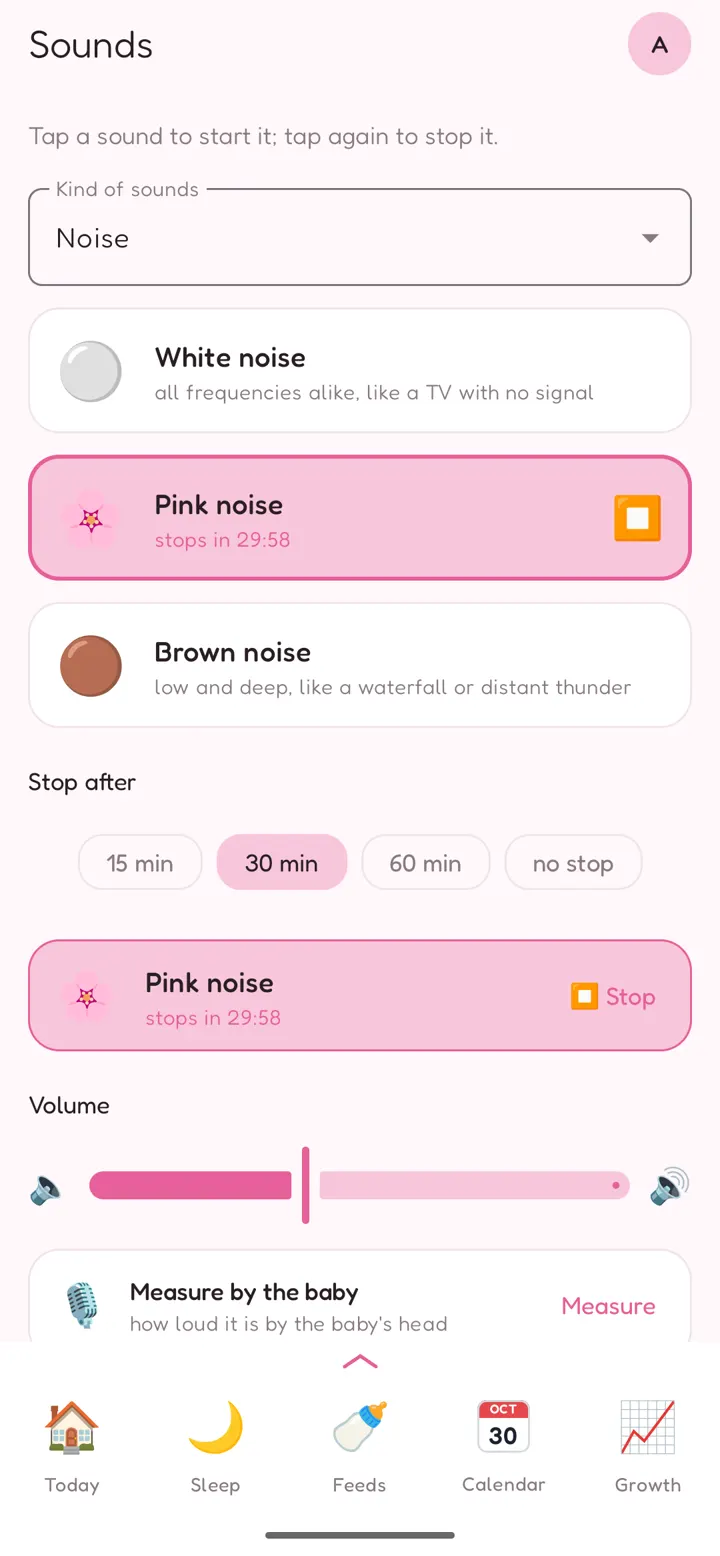
Calming sounds that keep playing with the screen off.
- Choose the Kind of sounds:
- Noise: White noise, Pink noise, Brown noise;
- Nature: Fire;
- Soothing: Shh, Train, Fan, Vacuum cleaner.
- Tap a sound to start it; tap it again to stop it.
- Pick when it stops under Stop after (15, 30 or 60 min, or no stop), and set the Volume.
Measure by the baby checks how loud the sound is where your baby sleeps.
- Hold the phone by the baby's head while the sound plays, for example on a Bluetooth speaker, and tap Measure.
- Up to 50 dB is the level recommended in hospital nurseries. Over 85 dB is a risk to hearing.
The app asks for the microphone only for this. It measures the level live and records nothing.
Keep the phone or speaker as far from the crib as you can (at least 2 m), and the volume low.
Settings
Tap the round picture at the top right of any main page to open Settings.
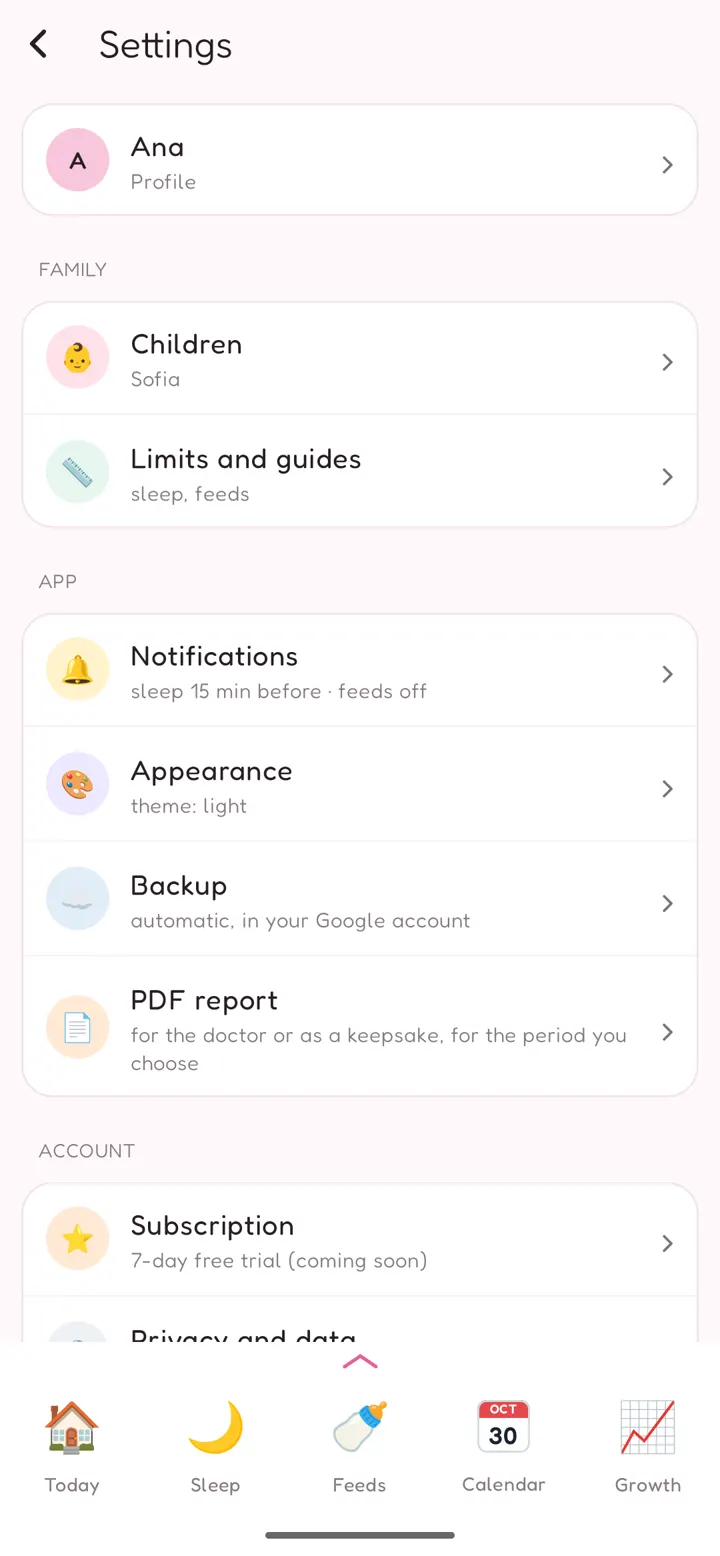
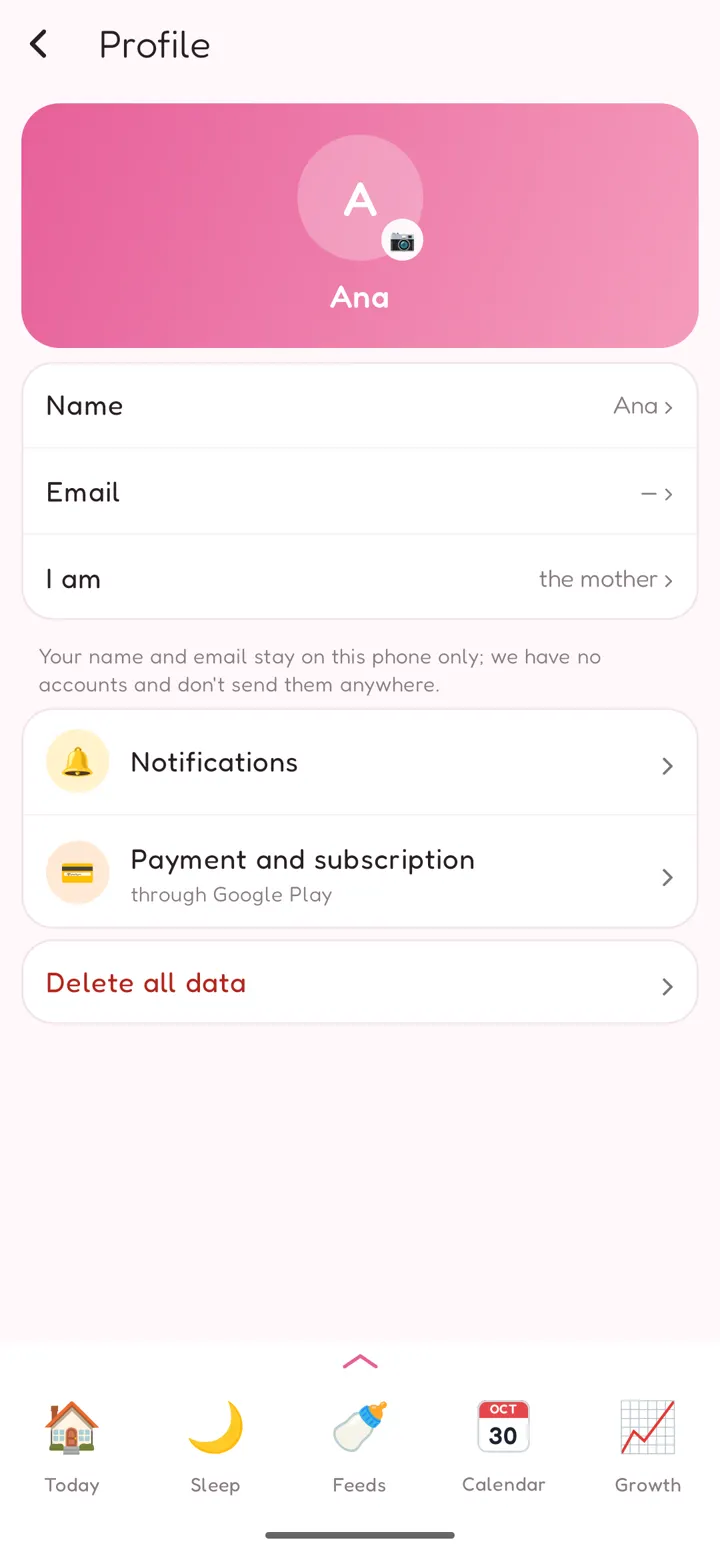
Profile: your name, email (optional) and I am (the mother, the father, someone else in the family), plus a photo for the round picture. They stay on this phone only.
Family
- Children: add a child, change a child's details (name, date of birth, due date, number of naps), or delete a child.
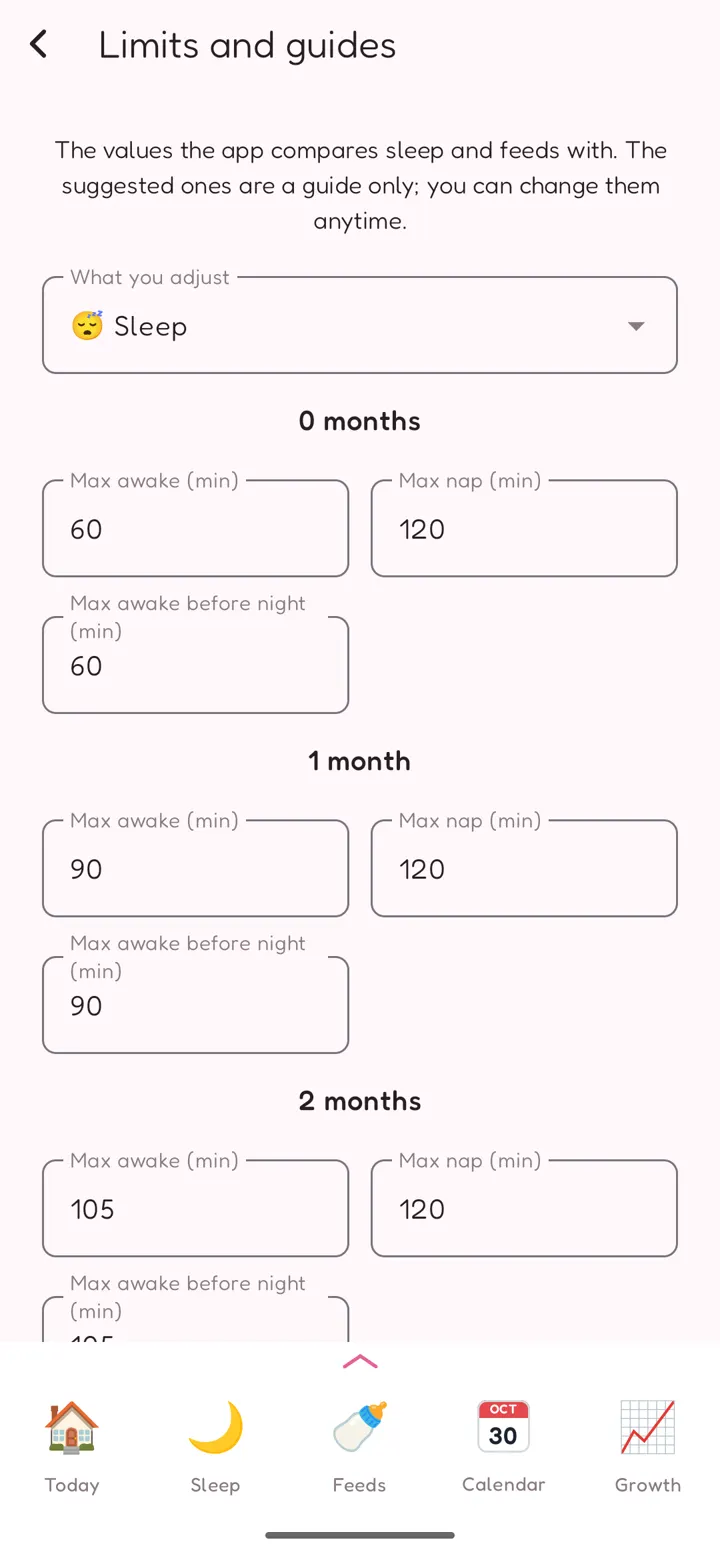
- Limits and guides: the values the app compares sleep and feeds with. You can change any of them, and Back to the suggested values resets them. They include:
- the longest awake time and nap for each age;
- the sleep needs;
- when to suggest fewer naps;
- the feeding guides;
- Short entries (the shortest sleep and breastfeed that get saved).
App
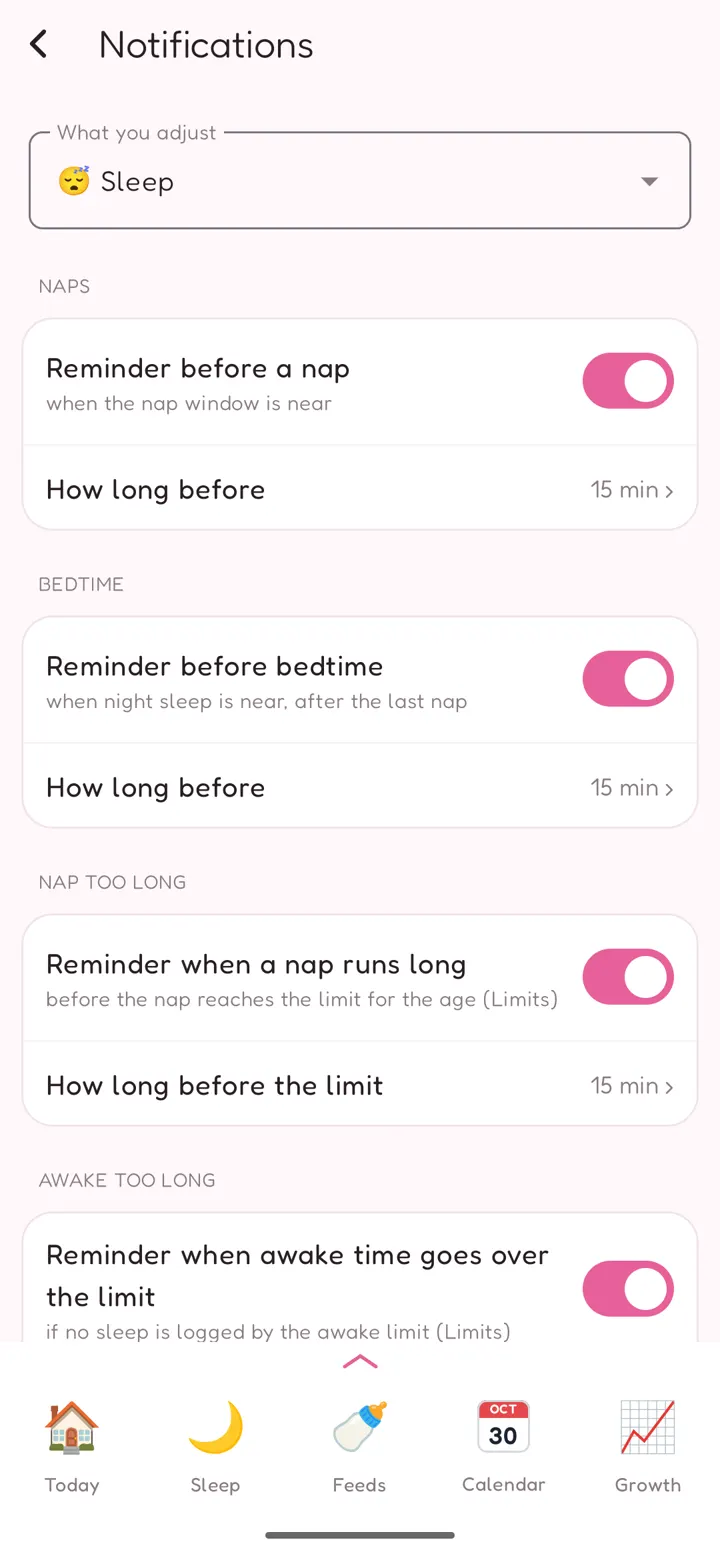
- Notifications — reminders the app plans for you:
- before a nap and before bedtime;
- when a nap runs long;
- when awake time goes over the limit;
- a feed reminder some hours after the last feed.
- If notifications are off for the app, Notification permission shows how to turn them on.
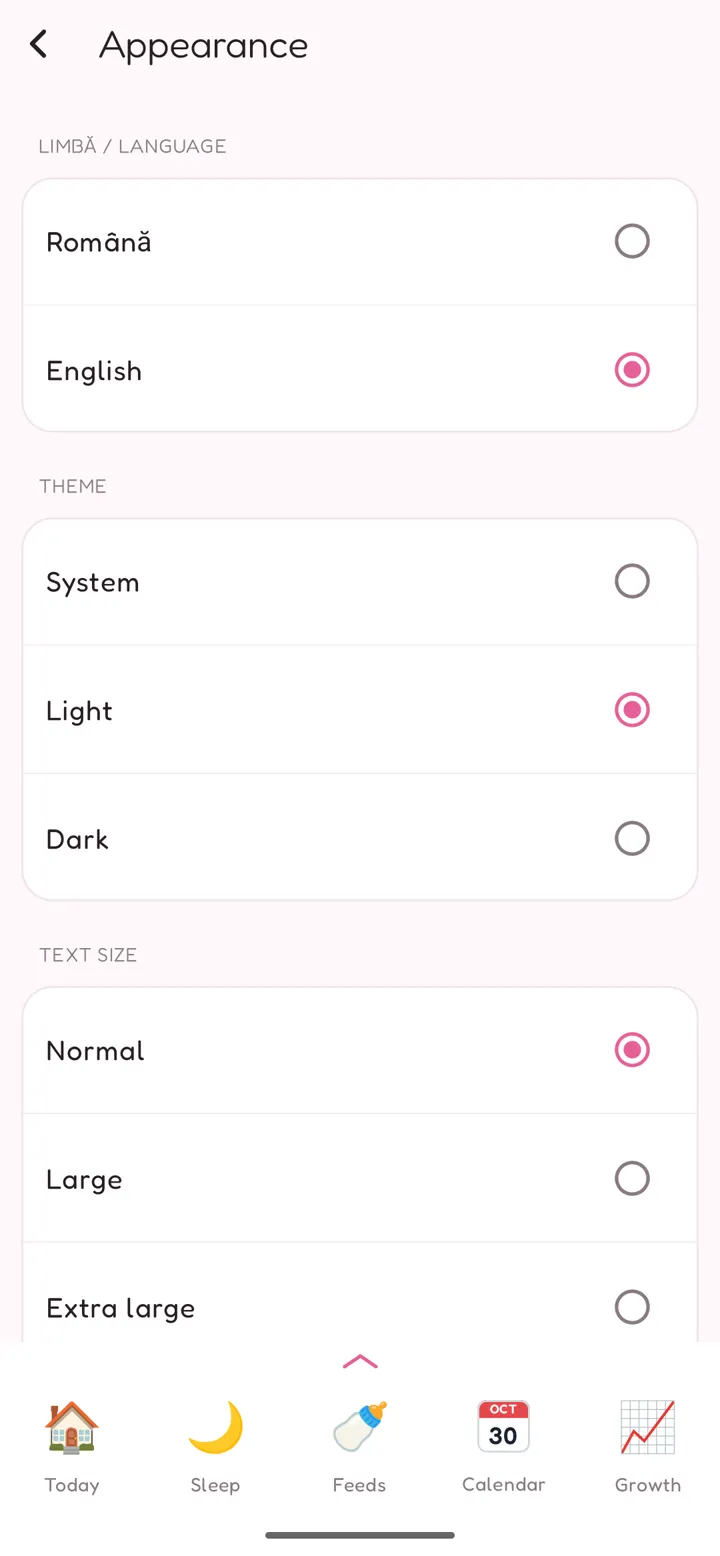
- Appearance: the language (Română / English), the theme (System, Light, Dark) and the Text size. The app's colour follows the chosen child: pink or blue.
- Backup: see Backup.
- PDF report: see PDF reports.
Account
- Subscription: see Baby World Plus.
- Privacy and data: where your data is kept, links to the Privacy policy and Deleting your data on this website, and Delete all data.
- Help: opens this guide.
- Contact: writes us an email at contact@babyworld.vktech.ro.
- Sources: where the app's guide values come from (WHO, CDC, AAP, UNICEF and others). Tap one to open it.
- About: the app version and licences.
Backup
(Settings → Backup)
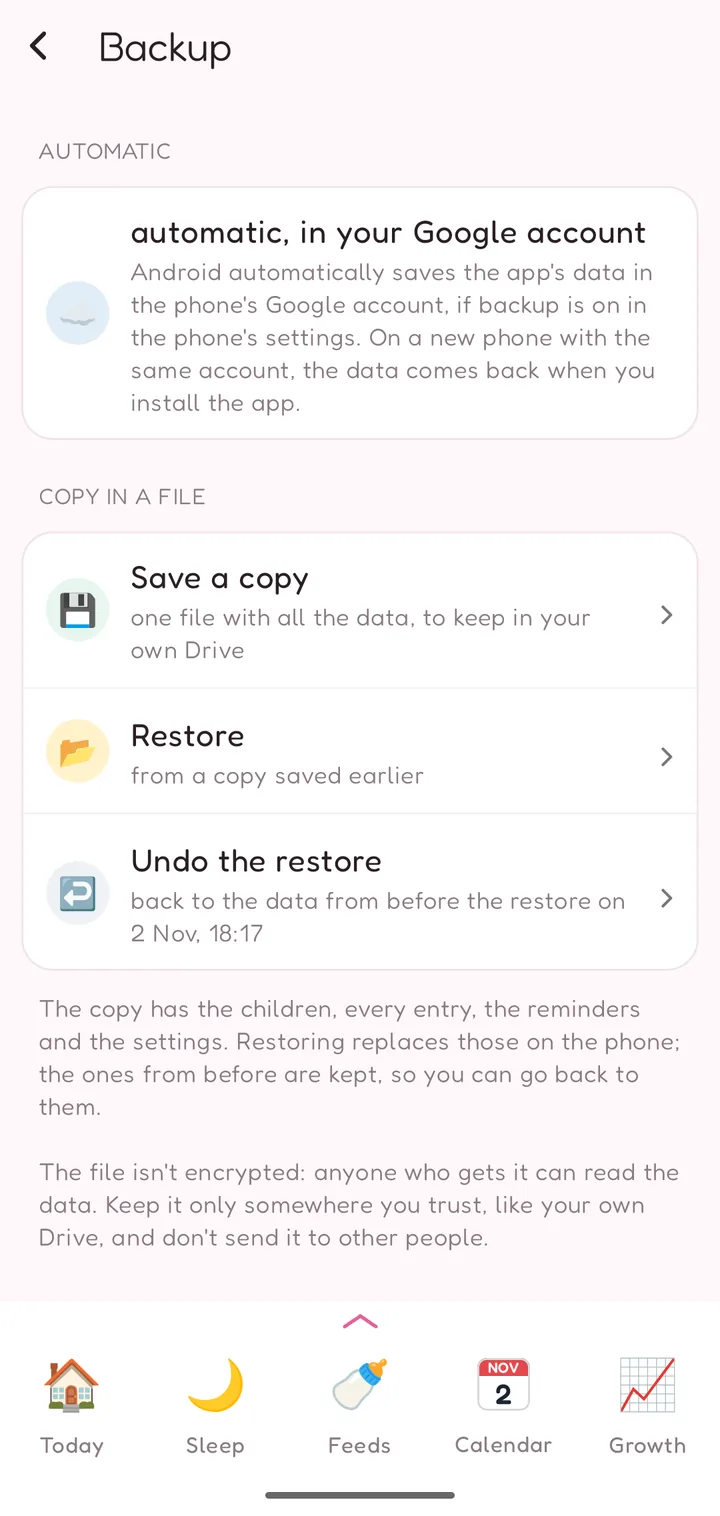
Your data lives only on your phone, so keep a copy. There are two ways.
Automatic (everyone)
- If backup is on in your phone's settings, Android saves the app's data in the phone's Google account.
- The phone needs a screen lock (PIN, pattern or password): the copy holds your baby's health logs, so Android makes it only when it can encrypt it.
- On a new phone with the same Google account, the data comes back when you install Baby World.
- This is Android's own backup; we have no server.
Copy in a file (Plus)
- Save a copy makes one file with all the data: children, every entry, reminders, settings and your profile photo.
- You choose where it goes: on the phone or in your own Google Drive.
- The file isn't encrypted: anyone who gets it can read the data. Keep it only somewhere you trust, and don't send it to other people.
- Restore loads a copy saved earlier.
- The app first checks the file is a Baby World copy and isn't damaged. Then it shows what's in it (the children's names) and asks you to confirm.
- Restoring replaces all the data on the phone; nothing is merged.
- Undo the restore brings back the data you had before the restore.
On a new phone, you can restore straight from the first screen: 📂 Have a saved copy? Restore it.
Baby World Plus
Baby World is free to download. When you add your first child, you get 7 days of everything, free. After that, the free version (Basic) keeps the essentials:
- logging sleep, feeds, events and pumping, with the last 14 days of history;
- Growth with the WHO charts;
- Sounds;
- Reminders and notifications;
- the automatic Google backup.
Plus adds:
- Leaps, with play ideas and your games log;
- the Calendar;
- PDF reports for the doctor or as a keepsake, and the pumping report;
- the whole history, not just the last 14 days;
- Clothes and Foot sizes;
- backup to a file (save a copy and restore it).
Nothing is deleted on Basic: older entries stay saved and show again with Plus.
One subscription per birth. Plus is a subscription through Google Play, and it covers the children of one birth: one child, twins or triplets. Each child with another date of birth adds +50%. If you delete an extra child, the price goes down from the next renewal; money already paid isn't refunded automatically.
You manage or cancel the subscription in Google Play: Settings → Subscription → Manage in Google Play.
Questions
Is my data sent anywhere?
No. Baby World has no account and no server, and it doesn't even have internet access. Your data stays on your phone and, if backup is on, in your phone's own Google backup. A PDF or a backup file goes only where you send it.
I have a new phone. How do I keep my data?
- With the same Google account and Android backup on, install Baby World and the data comes back by itself.
- With a saved copy (Plus): install Baby World, tap 📂 Have a saved copy? Restore it on the first screen and pick the file.
I logged something wrong.
- To change it: tap the entry in its history or in the Calendar.
- To delete it: swipe it left and tap Delete. Undo brings it back for a few seconds.
I have twins. Do I pay twice?
No. One subscription covers one birth: one child, twins or triplets. A child with another date of birth adds +50%.
My baby was premature. Are the ages right?
Enter the Due date (untick Born at term). The leaps and the growth charts count from it.
A nap or awake time shows in red.
It went over the limit for your baby's age. These limits are a guide, not a rule. You can change them in Settings → Limits and guides, for example to follow your sleep consultant's advice.
Reminders come late.
Allow exact reminders when the app asks, or in Settings → Notifications → Allow exact reminders. Without it, Android can delay a reminder.
Why can't I see older history?
On Basic, the history shows the last 14 days. Nothing is deleted: with Plus, all of it shows again.
How do I delete everything?
Go to Settings → Privacy and data → Delete all data. This can't be undone. Uninstalling the app also removes its data from the phone. Copies you saved yourself (backup files, PDFs) stay where you put them.
I switched the app to English / Romanian by mistake.
Go to Settings → Appearance (Setări → Aspect) and pick your language.
Is this medical advice?
No. Baby World is a log with guide values from WHO, CDC, AAP and UNICEF. Your baby's health booklet and your pediatrician stay the reference. For any worry, ask your doctor.
Still stuck? Write to us at contact@babyworld.vktech.ro.